Note: You cannot set up field dependencies for document fields that are Required.
### How to Create Document Lifecycle-Based Dependencies
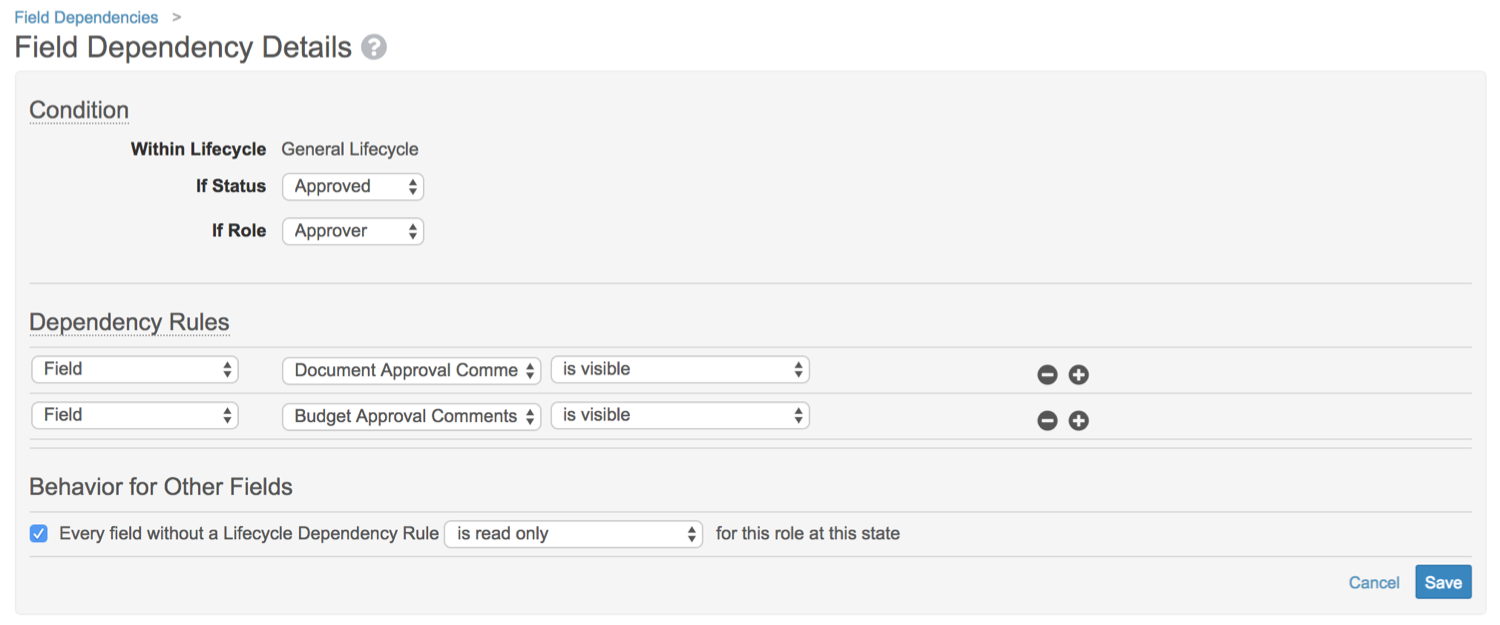
To create a new dependency rule where field behavior is controlled by document lifecycle state and user's document lifecycle role:
1. Click the **Create** button.
2. Select the **Controlled by document lifecycle** option.
3. Select a document lifecycle.
4. Click **OK** to open the details page.
5. Under **Condition**, select a **Lifecycle State** and **Lifecycle Role**.
6. Under **Dependency Rules**, set up the dependent field actions:
* Click the **Field** label to select an [action][1].
* If the controlling field has multiple dependent fields, click the **+** icon to add additional rows.
7. When finished, click **Save**.
### Known Issue When Reclassifying
Reclassifying
moves a document to a new document type, subtype, and classification. If the new document type uses a different lifecycle, reclassifying can also change the document's lifecycle. In these situations, Vault does not enforce the field dependencies based on the new lifecycle until the reclassifying user clicks **Save**, allowing users to view and edit fields that may be restricted by field dependencies on the new lifecycle.
## Controlled By Document Field
Controlling field dependencies allow you to set the behavior of a field based on the value selected for another field.
### Use Case: Controlled by Document Field
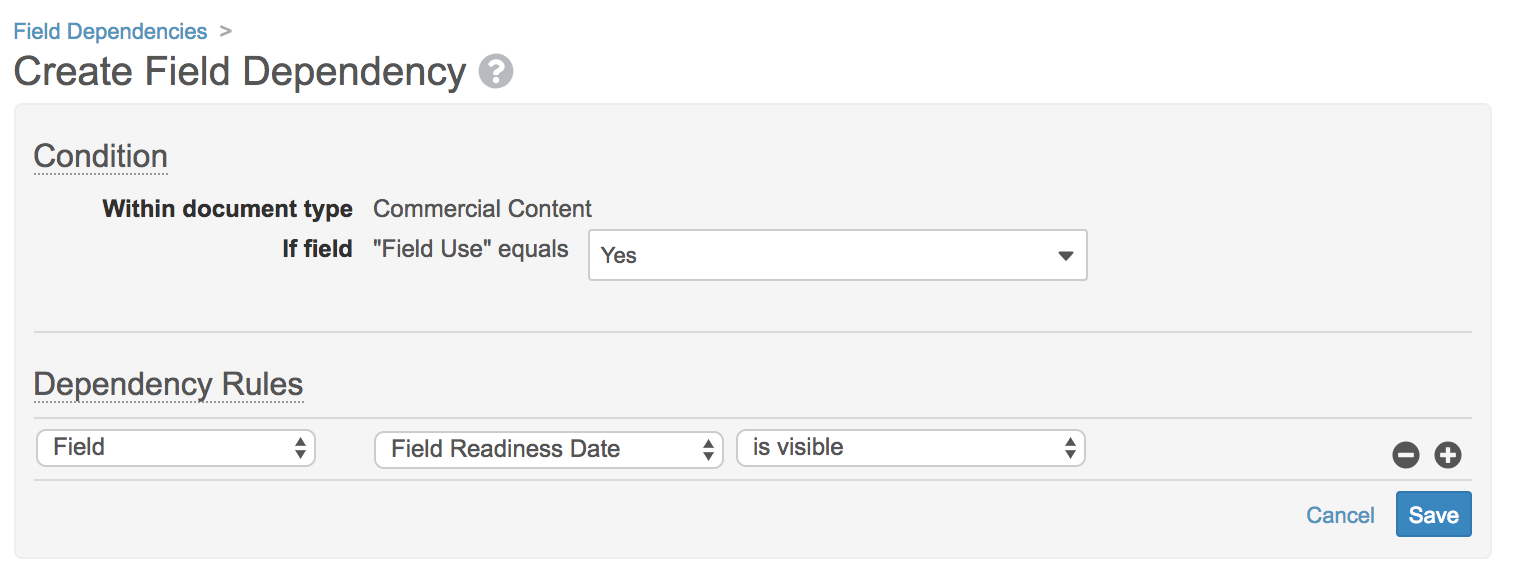
The _Field Readiness Date_ is only applicable when the _Field Use_ field is set to _Yes_. Otherwise, Vault should hide the field. To configure this, the Admin would create a field dependency using the **Controlled by document field** setting. The Admin would select the **Document Type** and, because the field is defined at the classification level, the **Subtype** and **Classification**. Then, the user could select the controlling field, **Field Use**.
On the _Create Field Dependency_ page, the Admin would finish defining the condition for **Field Use** and then choose **Field Readiness Date** and apply a specific behavior. When configuring dependencies that are controlled by a document field, Vault automatically applies the opposite behavior when the defined condition is _not met_. In this example, when **Field Use** is set to _No_, Vault hides **Field Readiness Date**.
 ### How to Create Document Field-Based Dependencies
To create a new dependency rule where field behavior is controlled by another document field:
1. Click the **Create** button.
2. Select the **Controlled by document field** option.
3. Make a document type selection. Only fields available for the selected document type will be available as controlling or dependent fields. You can set to **Base Document** to create a rule that applies to all documents.
4. Select a controlling field from the **Field** picklist.
5. Click **OK** to open the details page.
6. Under **Condition**, set the field value that will cause the dependent field action. For example, **Yes** or **No** for a boolean field.
7. Under **Dependency Rules**, set up the dependent field actions:
* Select **Field** or **Picklist** to indicate the type of dependent field.
* Select the field label and then select an [action][1].
* If the controlling field has multiple dependent fields, click the **+** icon to add additional rows.
8. When finished, click **Save**.
## Controlled by Document Type
Field dependencies based on document type, subtype, and classification help organizations refine the fields that apply to specific document types. This is particularly useful when a Vault has fields defined at the _Base Document_ level, but some fields are either not relevant or are required for a subset of document types.
### Use Case: Controlled by Document Type
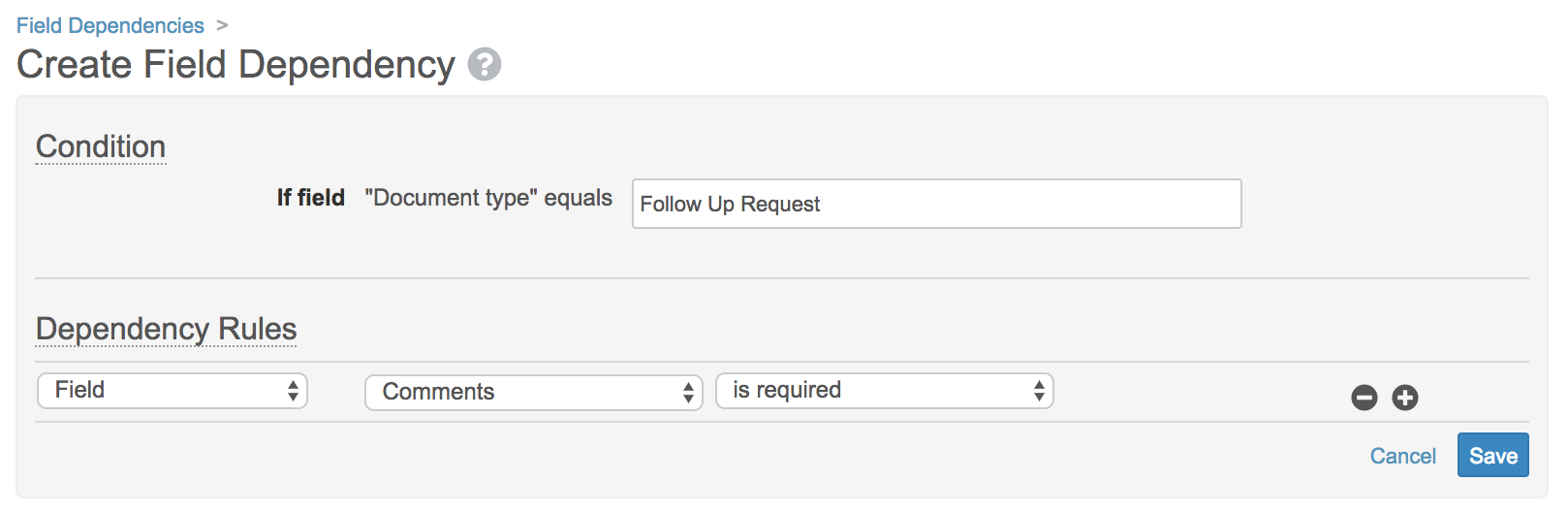
For example, the VeePharm Admin applies the _Comments_ field at the _Base Document_ level, meaning that it applies to all document types. In most cases, this field is optional, but the organization wants to ensure that it's filled out for documents with the _Follow Up Request_ document type. To configure this, the Admin creates a field dependency using the **Controlled by Document Type** option. The Admin then defines the dependency rule so that **Comments** has the **Is required** behavior when the document type is **Follow Up Request**.
### How to Create Document Field-Based Dependencies
To create a new dependency rule where field behavior is controlled by another document field:
1. Click the **Create** button.
2. Select the **Controlled by document field** option.
3. Make a document type selection. Only fields available for the selected document type will be available as controlling or dependent fields. You can set to **Base Document** to create a rule that applies to all documents.
4. Select a controlling field from the **Field** picklist.
5. Click **OK** to open the details page.
6. Under **Condition**, set the field value that will cause the dependent field action. For example, **Yes** or **No** for a boolean field.
7. Under **Dependency Rules**, set up the dependent field actions:
* Select **Field** or **Picklist** to indicate the type of dependent field.
* Select the field label and then select an [action][1].
* If the controlling field has multiple dependent fields, click the **+** icon to add additional rows.
8. When finished, click **Save**.
## Controlled by Document Type
Field dependencies based on document type, subtype, and classification help organizations refine the fields that apply to specific document types. This is particularly useful when a Vault has fields defined at the _Base Document_ level, but some fields are either not relevant or are required for a subset of document types.
### Use Case: Controlled by Document Type
For example, the VeePharm Admin applies the _Comments_ field at the _Base Document_ level, meaning that it applies to all document types. In most cases, this field is optional, but the organization wants to ensure that it's filled out for documents with the _Follow Up Request_ document type. To configure this, the Admin creates a field dependency using the **Controlled by Document Type** option. The Admin then defines the dependency rule so that **Comments** has the **Is required** behavior when the document type is **Follow Up Request**.
 ### How to Create Dependencies on Document Type
To create a new dependency rule controlled by document type:
1. Click the **Create** button.
2. Select the **Controlled by document type** option.
3. Select a document type to use in the dependency rule. This selection also determines which document fields are available as dependent fields.
4. Click **OK** to open the details page.
5. Under **Dependency Rules**, set up the dependent field actions:
* Select **Field** or **Picklist** to indicate the type of dependent field.
* Select the field label and then select an [action][1].
* If the controlling field has multiple dependent fields, click the **+** icon to add additional rows.
6. When finished, click **Save**.
## Dependent Field Behaviors {#behaviors}
When setting up a field dependency, you'll set the behavior for the dependent fields using one of these behaviors:
* **Read Only**: Dependent field is visible and read-only when the controlling conditions are met.
* **Visible**: Dependent field is visible and editable when the controlling conditions are met.
* **Required**: Dependent field is visible, editable, and required when the controlling conditions are met.
* **Hidden**: Dependent field is not visible when the controlling conditions are met.
### Opposite Behaviors
Field dependencies using the **Controlled by document field** setting automatically apply the opposite behavior when the controlling conditions are not met. For example, a dependency that makes _Field Readiness Date_ visible when _Field Use_ is set to _Yes_ automatically makes _Field Readiness Date_ hidden when _Field Use_ is set to _No_ or is blank.
### How to Create Dependencies on Document Type
To create a new dependency rule controlled by document type:
1. Click the **Create** button.
2. Select the **Controlled by document type** option.
3. Select a document type to use in the dependency rule. This selection also determines which document fields are available as dependent fields.
4. Click **OK** to open the details page.
5. Under **Dependency Rules**, set up the dependent field actions:
* Select **Field** or **Picklist** to indicate the type of dependent field.
* Select the field label and then select an [action][1].
* If the controlling field has multiple dependent fields, click the **+** icon to add additional rows.
6. When finished, click **Save**.
## Dependent Field Behaviors {#behaviors}
When setting up a field dependency, you'll set the behavior for the dependent fields using one of these behaviors:
* **Read Only**: Dependent field is visible and read-only when the controlling conditions are met.
* **Visible**: Dependent field is visible and editable when the controlling conditions are met.
* **Required**: Dependent field is visible, editable, and required when the controlling conditions are met.
* **Hidden**: Dependent field is not visible when the controlling conditions are met.
### Opposite Behaviors
Field dependencies using the **Controlled by document field** setting automatically apply the opposite behavior when the controlling conditions are not met. For example, a dependency that makes _Field Readiness Date_ visible when _Field Use_ is set to _Yes_ automatically makes _Field Readiness Date_ hidden when _Field Use_ is set to _No_ or is blank.
Note: This opposite behavior control does not apply to field dependencies that use the Controlled by document lifecycle setting.
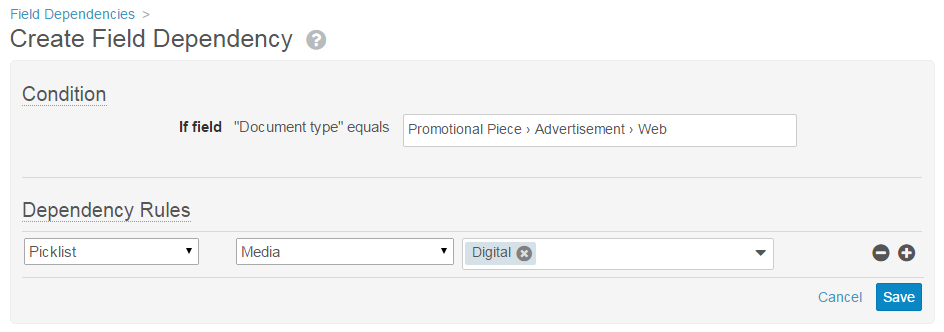 5. Under **Dependency Rules**, set up the dependent field actions:
* Select **Field** or **Picklist** to indicate the type of dependent field.
* Select the field label and then select an [action][1].
* If the controlling field has multiple dependent fields, click the **+** icon to add additional rows.
6. When finished, click **Save**.
## How to Create Document Field-Based Dependencies
To create a new rule where the controlling field is a document field:
1. Click the **Create** button.
2. Select the **Controlled by document field** option.
3. Make a document type selection. Only fields available for the selected document type will be available as controlling or dependent fields. You can set to **Base Document** to create a rule that applies to all documents.
4. Select a controlling field from the **Field** picklist.
5. Click **OK** to open the **Field Dependency Details** page.
6. Under **Condition**, set the field value that will cause the dependent field action. For example, **Yes** or **No** for a boolean field.
7. Under **Dependency Rules**, set up the dependent field actions:
* Select **Field** or **Picklist** to indicate the type of dependent field.
* Select the field label and then select an [action][1].
* If the controlling field has multiple dependent fields, click the **+** icon to add additional rows.
8. When finished, click **Save**.
## Special Considerations
There are a couple of items of note regarding dependent fields:
* Controlled field behaviors are only enforced at the UI level. Vault API and VQL do not use dependent field rules.
* The **Required** action is only enforced at the UI level. Vault API does not use dependent field rules. Fields defined as required through the document type hierarchy apply at the UI level and in the API.
* Field dependency rules also affect the [behavior of dependent fields][1] when the conditions are not met.
* The **Hidden** action is generally used with document type-based rules in order to hide a field that is defined at the document type for a subset of that document type's subtypes. You can use shared fields instead of dependency rules for these situations.
* When **Read-Only** is applied to a field through a security override, a field dependency cannot remove the action. You must remove the security override in order to remove the **Read-Only** action.
* Field dependencies are not supported in the Library
.
## Updating Dependency Rules
Some options that you define for a field dependency rule are only available during the initial creation process. When editing an existing rule, you can only modify the controlling conditions and the dependent fields. You cannot modify the document type selection.
Note that all rule updates apply immediately upon saving.
## Viewing Where Rules are Used
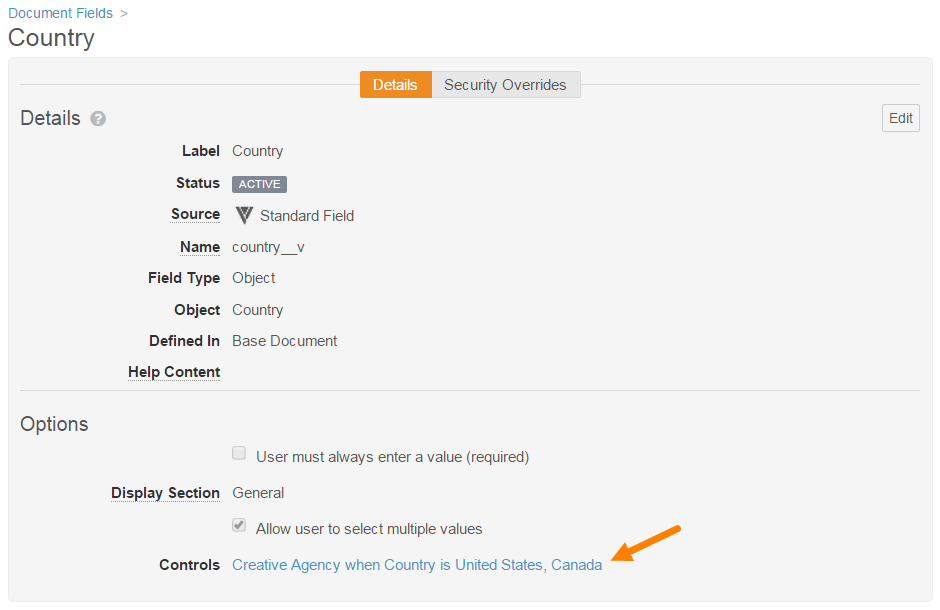
In addition to viewing defined rules on the **Field Dependencies** page, you can also view rules from the document field details page for the controlling or dependent fields.
5. Under **Dependency Rules**, set up the dependent field actions:
* Select **Field** or **Picklist** to indicate the type of dependent field.
* Select the field label and then select an [action][1].
* If the controlling field has multiple dependent fields, click the **+** icon to add additional rows.
6. When finished, click **Save**.
## How to Create Document Field-Based Dependencies
To create a new rule where the controlling field is a document field:
1. Click the **Create** button.
2. Select the **Controlled by document field** option.
3. Make a document type selection. Only fields available for the selected document type will be available as controlling or dependent fields. You can set to **Base Document** to create a rule that applies to all documents.
4. Select a controlling field from the **Field** picklist.
5. Click **OK** to open the **Field Dependency Details** page.
6. Under **Condition**, set the field value that will cause the dependent field action. For example, **Yes** or **No** for a boolean field.
7. Under **Dependency Rules**, set up the dependent field actions:
* Select **Field** or **Picklist** to indicate the type of dependent field.
* Select the field label and then select an [action][1].
* If the controlling field has multiple dependent fields, click the **+** icon to add additional rows.
8. When finished, click **Save**.
## Special Considerations
There are a couple of items of note regarding dependent fields:
* Controlled field behaviors are only enforced at the UI level. Vault API and VQL do not use dependent field rules.
* The **Required** action is only enforced at the UI level. Vault API does not use dependent field rules. Fields defined as required through the document type hierarchy apply at the UI level and in the API.
* Field dependency rules also affect the [behavior of dependent fields][1] when the conditions are not met.
* The **Hidden** action is generally used with document type-based rules in order to hide a field that is defined at the document type for a subset of that document type's subtypes. You can use shared fields instead of dependency rules for these situations.
* When **Read-Only** is applied to a field through a security override, a field dependency cannot remove the action. You must remove the security override in order to remove the **Read-Only** action.
* Field dependencies are not supported in the Library
.
## Updating Dependency Rules
Some options that you define for a field dependency rule are only available during the initial creation process. When editing an existing rule, you can only modify the controlling conditions and the dependent fields. You cannot modify the document type selection.
Note that all rule updates apply immediately upon saving.
## Viewing Where Rules are Used
In addition to viewing defined rules on the **Field Dependencies** page, you can also view rules from the document field details page for the controlling or dependent fields.
 [1]: #behaviors