 ### Header
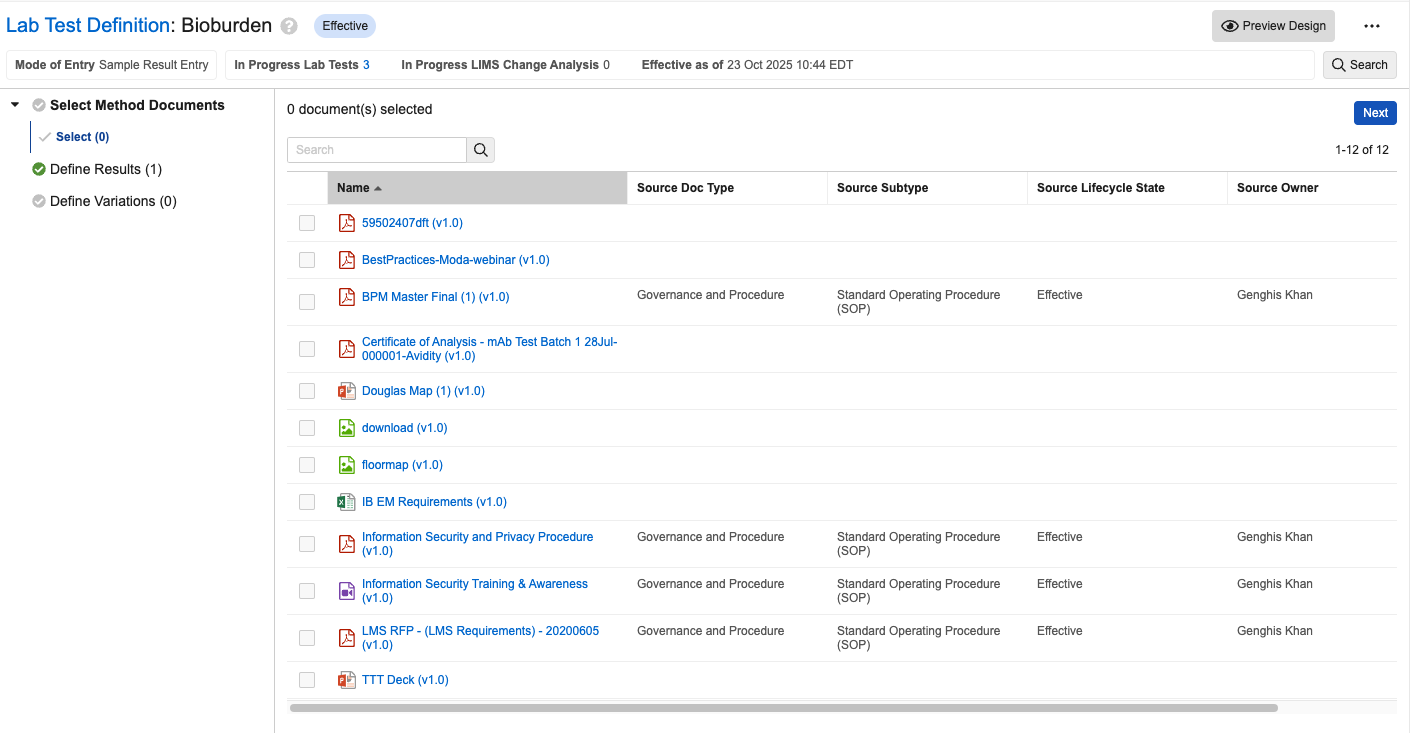
The header includes the following metadata:
* **Name**: The *Test Definition*'s name. You can edit this field inline.
* **Lifecycle State**: A badge showing the current lifecycle state of the *Test Definition*.
* **Mode of Entry**: *Sample Result Entry* or *Test Execution*. Some items in the UI differ based on this selection. You can edit this field inline.
* **IN Progress Tests**: The number of non-cancelled tests for this version of the *Test Definition*. You can click this number to open a list view of the tests in a new tab.
* **In Progress Change Analysis**: The number of in-progress Change Analyses for this *Test Definition*. This value can only be 0 or 1. You can click this number to open a list view of the Change Analysis in a new tab.
* **Effective Date**:
* If the record is superseded, this shows the *Previously Effective* date range.
* If the record is not effective or superseded, this shows the date the record will be effective, if set.
* If the record is effective, this shows the date it was made effective.
The header also includes a *Search* button. Click this button to open a dialog that allows you to search *Inputs*, *Method Parameters*, and *Results* within the *Test Definition*.
### Left Panel
You can collapse or expand the left panel as desired. Its contents vary based on the record's *Mode of Entry*.
If the *Mode of Entry* is *Test Execution*, it lists:
* Select Document
* Define Steps
* Define Variations
If the *Mode of Entry* is *Sample Result Entry*, it lists:
* Define Results
* Define Variation
### Right Panel
As the main work area for configuring your *Test Definition*, this panel's contents vary based on where you are in the configuration process. In addition to the work area, this panel includes the *Next* and *Back* buttons for navigating between sections and the *Not Applicable* checkbox. This checkbox is not available for some required subsections. Checking this box deletes any configuration records in the current subsection and marks it as complete. If you configure something in that subsection later, the *Not Applicable* checkbox is automatically cleared.
### Test Definition Builder Keyboard Shortcuts
You can use the following keyboard shortcuts to navigate the Test Definition Builder. When moving between elements using the keyboard, the focus cycles through UI elements in the following order: header, right panel, document viewer, and left panel.
| **Action** | **Windows Shortcut** | **Mac Shortcut** |
| ----------------------------------------------- | ---------------- | ---------------- |
| Move to next element on screen | `
### Header
The header includes the following metadata:
* **Name**: The *Test Definition*'s name. You can edit this field inline.
* **Lifecycle State**: A badge showing the current lifecycle state of the *Test Definition*.
* **Mode of Entry**: *Sample Result Entry* or *Test Execution*. Some items in the UI differ based on this selection. You can edit this field inline.
* **IN Progress Tests**: The number of non-cancelled tests for this version of the *Test Definition*. You can click this number to open a list view of the tests in a new tab.
* **In Progress Change Analysis**: The number of in-progress Change Analyses for this *Test Definition*. This value can only be 0 or 1. You can click this number to open a list view of the Change Analysis in a new tab.
* **Effective Date**:
* If the record is superseded, this shows the *Previously Effective* date range.
* If the record is not effective or superseded, this shows the date the record will be effective, if set.
* If the record is effective, this shows the date it was made effective.
The header also includes a *Search* button. Click this button to open a dialog that allows you to search *Inputs*, *Method Parameters*, and *Results* within the *Test Definition*.
### Left Panel
You can collapse or expand the left panel as desired. Its contents vary based on the record's *Mode of Entry*.
If the *Mode of Entry* is *Test Execution*, it lists:
* Select Document
* Define Steps
* Define Variations
If the *Mode of Entry* is *Sample Result Entry*, it lists:
* Define Results
* Define Variation
### Right Panel
As the main work area for configuring your *Test Definition*, this panel's contents vary based on where you are in the configuration process. In addition to the work area, this panel includes the *Next* and *Back* buttons for navigating between sections and the *Not Applicable* checkbox. This checkbox is not available for some required subsections. Checking this box deletes any configuration records in the current subsection and marks it as complete. If you configure something in that subsection later, the *Not Applicable* checkbox is automatically cleared.
### Test Definition Builder Keyboard Shortcuts
You can use the following keyboard shortcuts to navigate the Test Definition Builder. When moving between elements using the keyboard, the focus cycles through UI elements in the following order: header, right panel, document viewer, and left panel.
| **Action** | **Windows Shortcut** | **Mac Shortcut** |
| ----------------------------------------------- | ---------------- | ---------------- |
| Move to next element on screen | `Note: When adding a Calculated Method Parameter (a Test Set level Calculated Result) to a Test Definition using the Design Data Builder, Cross-Test and Aggregate variable types are not available for selection. Additionally, for Constant Variables, the Material constant type is not available.
 icon. Click the icon again to exit Preview Mode.
Preview Mode shows what the *Test Definition* you have created will look like to Lab Analysts using it. However, you cannot enter data or interact with it.
icon. Click the icon again to exit Preview Mode.
Preview Mode shows what the *Test Definition* you have created will look like to Lab Analysts using it. However, you cannot enter data or interact with it.
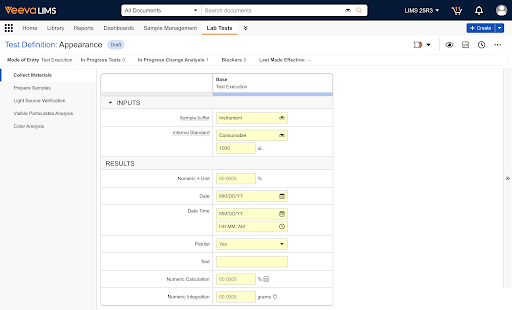 The left panel shows all of the *Steps* you've created in the configured order. Navigate between *Steps* by clicking them in this list. For each *Step*, the right panel shows a table of *Inputs* and *Results*. If you have configured any Variations, they appear as additional columns to the right.
## Required Permissions {#permissions}
To use the Test Definition Builder, you must have the following permissions:
* READ to the following Objects
* *Test Definition*
* *Test Definition Step*
* *Test Definition Result*
* READ to the following fields at the object level
* *Mode Of Entry* on *Test Definition*
[0]: #limitations
[1]: #permissions
[2]: #mode-of-entry
The left panel shows all of the *Steps* you've created in the configured order. Navigate between *Steps* by clicking them in this list. For each *Step*, the right panel shows a table of *Inputs* and *Results*. If you have configured any Variations, they appear as additional columns to the right.
## Required Permissions {#permissions}
To use the Test Definition Builder, you must have the following permissions:
* READ to the following Objects
* *Test Definition*
* *Test Definition Step*
* *Test Definition Result*
* READ to the following fields at the object level
* *Mode Of Entry* on *Test Definition*
[0]: #limitations
[1]: #permissions
[2]: #mode-of-entry