
Note: Test Definition Criteria uses the same Criteria Evaluation object as Spec Data Criteria. The Criteria Evaluation*_ object has reference fields for both, but only one should be used at a time. If a given _Criteria Evaluation record has both of those fields populated, an error will occur.

 Once the Lab Analyst saves a *Quality Control Sample*, Veeva LIMS checks for an existing *Quality Control Spec Execution* for the current *Test Set* and, if one does not already exist, creates one automatically. After that, the system creates a new *Lab Test* associated with the *Spec Execution* for each newly created *Quality Control Sample*. These *Lab Tests* are all based on the selected *Lab Test Definition Variation*. Next, the system creates any necessary child objects for the *Lab Tests*, such as *Test Steps*, *Test Results*, *Test Inputs*, *Test Result Variables*, and *Criteria Evaluations*.
### Flow When a Quality Control Sample Does Not Meet its Criteria
When a *Quality Control Sample* does not meet its criteria, this means that the System Suitability Test has failed; that is, the system is not delivering accurate results. In this case, after clicking the *Evaluate*, *Next*, or *Verify* button, a dialog appears informing the Lab Analyst of which QC results failed conformance and they must choose how to proceed.
Once the Lab Analyst saves a *Quality Control Sample*, Veeva LIMS checks for an existing *Quality Control Spec Execution* for the current *Test Set* and, if one does not already exist, creates one automatically. After that, the system creates a new *Lab Test* associated with the *Spec Execution* for each newly created *Quality Control Sample*. These *Lab Tests* are all based on the selected *Lab Test Definition Variation*. Next, the system creates any necessary child objects for the *Lab Tests*, such as *Test Steps*, *Test Results*, *Test Inputs*, *Test Result Variables*, and *Criteria Evaluations*.
### Flow When a Quality Control Sample Does Not Meet its Criteria
When a *Quality Control Sample* does not meet its criteria, this means that the System Suitability Test has failed; that is, the system is not delivering accurate results. In this case, after clicking the *Evaluate*, *Next*, or *Verify* button, a dialog appears informing the Lab Analyst of which QC results failed conformance and they must choose how to proceed.
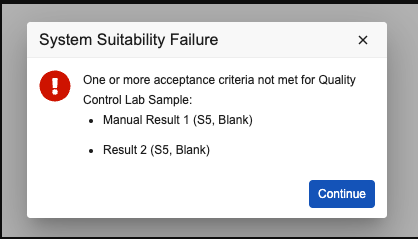 When the Lab Analyst clicks the **Continue** button, the *Test Set Invalidate* workflow begins. Depending on how the workflow has been configured, the Analyst can choose whether to continue testing or invalidate the *Test Set*. The recommended workflow configuration moves the *Test Set* to the In Review state and gives the Analyst these three options:
* **Continue Testing**: The *Test Set* moves back to the *In Progress* state and the Analyst can continue testing.
* **Invalidate Test Set and Retest**: The *Test Set* moves to the *Rejected* state and the *Retest* action runs on all existing *Tests* in the *Test Set*.
* **Invalidate Test Set, Resampling Required**: The *Test Set* moves to the *Rejected* state.
## Relevant Permissions
In order to manage design data related to System Suitability Testing, Design Data Admins must have *View* permissions to the *Lab Test Definition Version History* control and *Criteria* control for the *Lab Test Definition Criteria* object as well as the *Test Definition Criteria* control for *Spec Data* object.
In order to perform data entry related to System Suitability Testing, Lab Analysts must have *Edit* access to the *Invalid Reason* and *Invalid Category* fields on the *Test Set* object.
Additionally, to interact with System Suitability Testing, all LIMS Users must have *Read* and *Edit* access to the *Quality Control Sample* object type on the *Lab Sample* object, *Read* access to the *Quality Control Sample Criteria* and *Operation Criteria* object types on the *Lab Test Definition Criteria* object, and *Read* access to the *Quality Control Sample* and *Operational Criteria* fields on the *Spec Execution* object.
When the Lab Analyst clicks the **Continue** button, the *Test Set Invalidate* workflow begins. Depending on how the workflow has been configured, the Analyst can choose whether to continue testing or invalidate the *Test Set*. The recommended workflow configuration moves the *Test Set* to the In Review state and gives the Analyst these three options:
* **Continue Testing**: The *Test Set* moves back to the *In Progress* state and the Analyst can continue testing.
* **Invalidate Test Set and Retest**: The *Test Set* moves to the *Rejected* state and the *Retest* action runs on all existing *Tests* in the *Test Set*.
* **Invalidate Test Set, Resampling Required**: The *Test Set* moves to the *Rejected* state.
## Relevant Permissions
In order to manage design data related to System Suitability Testing, Design Data Admins must have *View* permissions to the *Lab Test Definition Version History* control and *Criteria* control for the *Lab Test Definition Criteria* object as well as the *Test Definition Criteria* control for *Spec Data* object.
In order to perform data entry related to System Suitability Testing, Lab Analysts must have *Edit* access to the *Invalid Reason* and *Invalid Category* fields on the *Test Set* object.
Additionally, to interact with System Suitability Testing, all LIMS Users must have *Read* and *Edit* access to the *Quality Control Sample* object type on the *Lab Sample* object, *Read* access to the *Quality Control Sample Criteria* and *Operation Criteria* object types on the *Lab Test Definition Criteria* object, and *Read* access to the *Quality Control Sample* and *Operational Criteria* fields on the *Spec Execution* object.