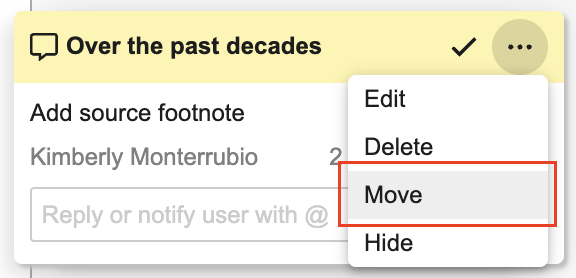
 You can move annotations in the following ways:
* **Comment or Link Annotations with Text Selections**: Moving the annotation changes which text is selected. Editing can also change a text selection into an image selection.
* **Comment or Link Annotations with Image Selections**: Moving the annotation can move or resize the selected area. Editing can also change an image selection into a text selection.
* **Comment or Link Annotations on Videos**: Moving the annotation adjusts the time signature and the selected area.
* **Sticky Comment Annotations**: Moving the annotation moves the sticky note icon. Although you can't create a sticky comment over text, you can move it over a text area. You cannot resize the sticky comment icon.
* **Line Annotations**: Moving the annotation can move the line group to a different location on the document. When moving a line group, you can also add, remove, or edit the lines in the group.
* **Anchor Annotations**: If you have the _Manage Anchors_ permission, or you authored the annotation, you can move any anchor annotations that do not have inbound references.
## Viewing Annotations
When in _Annotate_ mode, annotations appear to the right of the document in the document viewer. The annotation toolbar appears above the annotations, to the right of the document viewer toolbar. You can access the _Filters_ () menu, see the number of hidden annotations, and navigate between annotations from this toolbar.
### How to Hide Annotations
If you need to add an annotation to an area where there are already multiple annotations, there is a shortcut key to help you hide all of the annotations quickly. Pressing the shortcut a second time makes the hidden annotations visible again.
* On Mac: Use **Cmd** + **,** (**Cmd** + **comma**)
* On Windows: Use **Ctrl** + **,** (**Ctrl** + **comma**)
You can also hide all annotations or specific types of annotations from the **Filters** menu.
### Filters Menu {#filters_menu}
You can use the _Filters_ menu () to show and hide annotations based on various criteria:
Keyword
: Enter a keyword or phrase (up to 100 characters) to show only annotations where the text selection, comment, or reply contains matching text.
Created Date
: Show annotations according to the date they were created. The _In the range_ filter allows you to filter on annotations created between two dates. The _Before_ filter allows you to filter on annotations created before a specified date. The _After_ filter allows you to filter on annotations created after a specified date. Replies are included when calculating the _Created Date_, meaning an older note with a newer reply can be filtered by either date. For example, a note created on January 5 with a reply on January 10 is displayed when filtering for notes before January 10 as well as after January 5.
Notes
: Show only unresolved or only resolved annotations.
Placement
: Show annotations that have a text or image selection in the document, or show page-level annotations without a text or image selection.
Links
: Show link annotations by type - _Document_, _Permalink_, or anchor. Filtering permalink annotations is only visible in Vaults with linking to permalinks enabled.
Author
: Show annotations created by yourself, or show annotations created by other users.
Tags
: Show only annotations with specific tags.
Version
: Show only annotations created in the viewed document version. This filter excludes annotations that were brought forward from previous document versions.
Filter Anchors
: Show only anchors that are used by specific selected documents. This option opens a dialog where you can search for and select documents. Vault will hide all anchors not used by one of the selected documents. To view all referencing documents, expand the anchors inside each link annotation on the document before clicking **Filter Anchors**. To filter out anchors that have no inbound links, uncheck **Display empty anchors**. This option is not available for videos.
Vault remembers and re-applies most _Filters_ menu settings for each user, across all documents, browsers, and sessions within a single Vault. The only _Filters_ menu settings not saved are _Hide/Show Annotations_, _Filter Anchors_, _Author_, and _Tag_. When you view a document in annotate mode, Vault displays the number of annotations you've hidden with either the shortcut key or filters.
Click **Reset All** to remove filters and show all annotations.
## Deleting Annotations {#deleting-annotations}
The ability to delete annotations depends on your [permissions][4] and your Vault's configuration
for users in the _Document Owner_ role.
To delete an individual annotation or reply, select **Delete** from its **Actions** menu.
### Deleting Annotations with the _Annotate_ Permission {#delete-with-annotate-permission}
Users with the required permissions can delete annotations that they authored, including anchor annotations with no inbound references. Once deleted, annotations are not recoverable. Users cannot delete an annotation on a document under _Legal Hold_ or anchor annotations with inbound references.
Users with the required permissions can also perform the following deletion actions:
* Delete any individual brought-forward annotation, except anchors with inbound references.
* Bulk remove annotations that they brought forward.
* Bulk remove annotations brought forward by any user.
* Delete any anchor annotations with no inbound references.
If replies exist, the original creator can delete the original annotation, which also deletes any replies. Users can delete replies to annotations if their reply is the latest available.
### Deleting Annotations as the _Document Owner_
Depending on your Vault's configuration
, the user in the _Document Owner_ role on a document can delete individual annotations and replies created by any user. The _Document Owner_ must have the [required permissions][4] to delete annotations and the annotations must meet the deletion criteria listed in the [Deleting Annotations with the _Annotate_ Permission][5] section.
## Bringing Forward Annotations
If your configuration allows this, you can bring forward link, note, anchor, and line annotations
from previous document versions, dramatically reducing the effort required to maintain annotations throughout a document's lifecycle.
## Downloading Documents with Annotations {#download}
There are two options in Vault to download and view a document's annotations offline. The first, the **PDF with Annotations** download option, is available on all Vaults. This option gives you a read-only version of the annotations. The second, **Export Annotations**, requires that your Vault uses the offline annotations
feature.
To download the PDF viewable rendition showing annotations in the margins, navigate to the the Doc Info page or Library, then click and select **PDF with Annotations**. You can also select this option from the **All Actions** () menu. If some annotations are hidden by [filters](#filters_menu), Vault displays the **Apply Filters** dialog. Select the checkbox to exclude filtered-out annotations from the PDF. Annotations hidden manually are not excluded. Vault includes the annotation notes in the margin of the downloaded PDF.
You can move annotations in the following ways:
* **Comment or Link Annotations with Text Selections**: Moving the annotation changes which text is selected. Editing can also change a text selection into an image selection.
* **Comment or Link Annotations with Image Selections**: Moving the annotation can move or resize the selected area. Editing can also change an image selection into a text selection.
* **Comment or Link Annotations on Videos**: Moving the annotation adjusts the time signature and the selected area.
* **Sticky Comment Annotations**: Moving the annotation moves the sticky note icon. Although you can't create a sticky comment over text, you can move it over a text area. You cannot resize the sticky comment icon.
* **Line Annotations**: Moving the annotation can move the line group to a different location on the document. When moving a line group, you can also add, remove, or edit the lines in the group.
* **Anchor Annotations**: If you have the _Manage Anchors_ permission, or you authored the annotation, you can move any anchor annotations that do not have inbound references.
## Viewing Annotations
When in _Annotate_ mode, annotations appear to the right of the document in the document viewer. The annotation toolbar appears above the annotations, to the right of the document viewer toolbar. You can access the _Filters_ () menu, see the number of hidden annotations, and navigate between annotations from this toolbar.
### How to Hide Annotations
If you need to add an annotation to an area where there are already multiple annotations, there is a shortcut key to help you hide all of the annotations quickly. Pressing the shortcut a second time makes the hidden annotations visible again.
* On Mac: Use **Cmd** + **,** (**Cmd** + **comma**)
* On Windows: Use **Ctrl** + **,** (**Ctrl** + **comma**)
You can also hide all annotations or specific types of annotations from the **Filters** menu.
### Filters Menu {#filters_menu}
You can use the _Filters_ menu () to show and hide annotations based on various criteria:
Keyword
: Enter a keyword or phrase (up to 100 characters) to show only annotations where the text selection, comment, or reply contains matching text.
Created Date
: Show annotations according to the date they were created. The _In the range_ filter allows you to filter on annotations created between two dates. The _Before_ filter allows you to filter on annotations created before a specified date. The _After_ filter allows you to filter on annotations created after a specified date. Replies are included when calculating the _Created Date_, meaning an older note with a newer reply can be filtered by either date. For example, a note created on January 5 with a reply on January 10 is displayed when filtering for notes before January 10 as well as after January 5.
Notes
: Show only unresolved or only resolved annotations.
Placement
: Show annotations that have a text or image selection in the document, or show page-level annotations without a text or image selection.
Links
: Show link annotations by type - _Document_, _Permalink_, or anchor. Filtering permalink annotations is only visible in Vaults with linking to permalinks enabled.
Author
: Show annotations created by yourself, or show annotations created by other users.
Tags
: Show only annotations with specific tags.
Version
: Show only annotations created in the viewed document version. This filter excludes annotations that were brought forward from previous document versions.
Filter Anchors
: Show only anchors that are used by specific selected documents. This option opens a dialog where you can search for and select documents. Vault will hide all anchors not used by one of the selected documents. To view all referencing documents, expand the anchors inside each link annotation on the document before clicking **Filter Anchors**. To filter out anchors that have no inbound links, uncheck **Display empty anchors**. This option is not available for videos.
Vault remembers and re-applies most _Filters_ menu settings for each user, across all documents, browsers, and sessions within a single Vault. The only _Filters_ menu settings not saved are _Hide/Show Annotations_, _Filter Anchors_, _Author_, and _Tag_. When you view a document in annotate mode, Vault displays the number of annotations you've hidden with either the shortcut key or filters.
Click **Reset All** to remove filters and show all annotations.
## Deleting Annotations {#deleting-annotations}
The ability to delete annotations depends on your [permissions][4] and your Vault's configuration
for users in the _Document Owner_ role.
To delete an individual annotation or reply, select **Delete** from its **Actions** menu.
### Deleting Annotations with the _Annotate_ Permission {#delete-with-annotate-permission}
Users with the required permissions can delete annotations that they authored, including anchor annotations with no inbound references. Once deleted, annotations are not recoverable. Users cannot delete an annotation on a document under _Legal Hold_ or anchor annotations with inbound references.
Users with the required permissions can also perform the following deletion actions:
* Delete any individual brought-forward annotation, except anchors with inbound references.
* Bulk remove annotations that they brought forward.
* Bulk remove annotations brought forward by any user.
* Delete any anchor annotations with no inbound references.
If replies exist, the original creator can delete the original annotation, which also deletes any replies. Users can delete replies to annotations if their reply is the latest available.
### Deleting Annotations as the _Document Owner_
Depending on your Vault's configuration
, the user in the _Document Owner_ role on a document can delete individual annotations and replies created by any user. The _Document Owner_ must have the [required permissions][4] to delete annotations and the annotations must meet the deletion criteria listed in the [Deleting Annotations with the _Annotate_ Permission][5] section.
## Bringing Forward Annotations
If your configuration allows this, you can bring forward link, note, anchor, and line annotations
from previous document versions, dramatically reducing the effort required to maintain annotations throughout a document's lifecycle.
## Downloading Documents with Annotations {#download}
There are two options in Vault to download and view a document's annotations offline. The first, the **PDF with Annotations** download option, is available on all Vaults. This option gives you a read-only version of the annotations. The second, **Export Annotations**, requires that your Vault uses the offline annotations
feature.
To download the PDF viewable rendition showing annotations in the margins, navigate to the the Doc Info page or Library, then click and select **PDF with Annotations**. You can also select this option from the **All Actions** () menu. If some annotations are hidden by [filters](#filters_menu), Vault displays the **Apply Filters** dialog. Select the checkbox to exclude filtered-out annotations from the PDF. Annotations hidden manually are not excluded. Vault includes the annotation notes in the margin of the downloaded PDF.
Note: There is a known issue where Vault does not place annotations properly on a downloaded PDF with annotations if one of the pages is larger than 8×11. Users may also see a document processing error message when attempting to download an annotated PDF with very large page sizes. If either of these situations occurs, please contact Veeva Support.