# Test Definitions (LIMS)

A test definition defines which test definition steps, test definition result records, and lab input records (such as instruments or consumables) LIMS needs to generate when a *Test* is created. The result definitions and inputs are defined on steps and reflect what the test definition procedure requires to be captured during [test execution](/en/lr/51412711/).

## **Test Definition Version Control**

*Test Definition* records are subject to Veeva LIMS version control. Once these records are *Approved*, they become locked and cannot be edited. Instead, you must create a new version using the *Create New Version* action on the record.

When a test definition is created, Veeva LIMS automatically creates an associated *LIMS Change Analysis* record in the background. As part of the [Change Analysis](/en/lr/51412707/) process, records referenced by the new version of the *Test Definition* (e.g., another *Test Definition* record, *Spec Data* records) will also have a new version created (managed by the Change Analysis).

## **Creating Test Definitions**

To create a *Test Definition* record:

1. Navigate to **Business Admin > Test Definitions**, or to a custom object tab.
2. Click **Create**.
3. Enter a **Name**.
4. Optional: Enter an **Estimated Duration**.
5. Click **Save**.

### Adding Test Definition Steps to your Test Definition

Each *Test Definition* contains one or more *Test Definition Steps*. At test execution, steps will contain one (1) or more inputs or results and they typically correlate to one (1) or more steps within the method document.

<div class="note-border alert-info">
  <div class="alert alert-info" role="alert">
    <div><i class="far fa-info-circle"></i></div>
    <div class="alert-text">
      <p><strong>Note</strong>: Depending on system configuration, Veeva LIMS may automatically create a <em>Default step</em> when the <em>Test Definition</em> record is created. The name of this <em>Default step</em> can be modified.</p>
    </div>
  </div>
</div>


To create a *Test Definition Step*:

1. Navigate to the *Test Steps* section of a *Test Definition* record.
2. Click **Create**.
3. Enter a **Name**.
4. Enter an **Order**. This determines the order the step will be presented within the test execution page.
5. Click **Save**.

Repeat for additional *Test Definition Steps*.

### Adding Test Definition Results to your Test Definition

Each *Test Definition* contains one or more *Test Definition Results*, which *Lab Results* are created from at runtime. *Test Definition Results* contain many attributes that determine how the *Lab Result* will be displayed, how the data will be entered, what values it will accept, and even how the values will be formatted for the lab analyst in the test execution page.

To create a *Test Definition Result*:

1. Navigate to the *Result Definitions* section of a *Test Definition* record.
2. Click **Create**.
3. Select a result type from the drop-down. The result types available are:
    * Numeric (includes the option to define a [calculation](/en/lr/51412706/))
    * Picklist
    * Date
    * Date Time
    * Text
4. Enter a **Name**. This is how the *Lab Result* label will appear in the test execution grid.
5. Optional: Select a **Result Level**. This field indicates whether the *Test Definition Result* applies to all *Tests* in a given *Test Set* (**Test Set** level) or individually per *Test* (**Test** level.) The default is *Test* level.
6. Select a **Test Definition Step**. If only one (1) *Test Definition Step* exists, it will be defaulted.
7. Enter an **Order**. This determines the *Test Definition Step*'s positioning among the other results in the test execution grid.
8. Select a **Data Entry Method**:
    * **Manual**: Allows the user to input the value during test execution.
    * **Integration**: The value is drawn from data via Vault integrations.
    * **Calculation**: The value is the result of a [predefined calculation](/en/lr/51412706/). This entry method is only available for the *Numeric Result* definition type.
9. Select the **Required?** Yes/No field to define if a value must be populated during test execution.
10. For a **Numeric Result**, populate the following fields as applicable:
    * **Unit of Measure**
    * **Notation** (standard or scientific eNotation)
    * **Rounding Rule** (USP or ASTM)
    * **Precision Type** (Decimal Places or Significant Figures)
    * **Precision**: Enter a numeric value. This is to format the result for display purposes during test execution.  For whole numbers, the Precision value should be 0.
11. Optional: For a **Numeric Result**, you can also set **LOD** and **LOQ** if configured by an Admin. See [About Limits of Detection and Quantification][2].
12. For a **Picklist Result** you must select a [*Lab Result Picklist record*][1] from the drop-down, which determines the picklist from which the lab Analyst will select a picklist value during test execution. This is a LIMS object, not the platform *Picklist* component.
13. Click **Save**.

#### About Limits of Detection and Quantification {#lod-loq}

Limits of Detection (LOD) and Limits of Quantification (LOQ) represent limits to what Lab Analysts can reliably detect and quantify. A Limit of Detection is the lowest value that a given analytical method or instrument can reliably detect. Likewise, a Limit of Quantification is the lowest value that the analytical method or instrument can detect and measure with an acceptable level of precision and accuracy. If configured, you can specify one or both of these limits for numeric *Test Definition Results*.

In order to configure LOD and LOQ, an Admin must add fields to the following object layouts:


| Object                                                                          | Fields to Add                                                                                                                                                                                                                                                                                                  |
|---------------------------------------------------------------------------------|----------------------------------------------------------------------------------------------------------------------------------------------------------------------------------------------------------------------------------------------------------------------------------------------------------------|
| *Lab Test Result* (`lims_test_result__v`)                                           | *Below LOD?* (`below_lod__v`), *Below LOQ?* (`below_loq__v`)                                                                                                                                                                                                                                                           |
| *Lab Test Definition Result* (`lims_test_definition_result__v`)                     | *LOD* (`lod__v`), *LOD Entry Options* (`lod_entry_options__v`), *LOD Calculation Value* (`lod_calculation_value__v`), *LOD Formatted Value* (`lod_formatted_value__v`), *LOQ* (`loq__v`), *LOQ Entry Options* (`loq_entry_options__v`), *LOQ Calculation Value* (`loq_calculation_value__v`), *LOQ Formatted Value* (`loq_formatted_value__v`) |
| *Lab Test Definition Variation Result* (`lims_test_definition_variation_result__v`) | *LOD* (`lod__v`), *LOD Entry Options* (`lod_entry_options__v`), *LOD Calculation Value* (`lod_calculation_value__v`), *LOD Formatted Value* (`lod_formatted_value__v`), *LOQ* (`loq__v`), *LOQ Entry Options* (`loq_entry_options__v`), *LOQ Calculation Value* (`loq_calculation_value__v`), *LOQ Formatted Value* (`loq_formatted_value__v`) |

To specify **LOD** while creating a *Numeric Result*, scroll down to the **LOD/LOQ** section and complete the following fields:

* **LOD**: A numeric value representing the Limit of Detection. Any result less than this value is considered below LOD, but the value itself is an acceptable result. If you are configuring both LOD and LOQ for the *Test Definition Result*, this value must be smaller than the LOQ value.
* **LOD Entry Options**: The acceptable text strings for entry in the *Test Execution* grid. Choose one or more options.
    * **ND**: The literal string `ND`
    * **Not Detected**: The literal string `Not Detected`
    * **< LOD**: The literal string `< LOD`
    * **< LOD Numeric Value**: A string with an interpolated numeric value. For example, `< 3`
    * **< LOD Numeric Value Unit**: A string with an interpolated numeric value and unit value. For example, `< 3 g`
* **LOD Formatted Value**: How the entry option will be formatted in the Test Execution UI. Choose one option. This field uses the same values as *LOD Entry Options*.
* **LOD Calculation Value**: The value is used in calculations if the result is below the Limit of Detection.
    * **0**
    * **LOD or LOQ Limit Value**
    * **Value Entered or LOD or LOQ**
    * **Value Entered or LOD/2 or LOQ/2**
    * **Value Entered or Zero**

To specify **LOQ** while creating a *Numeric Result*, scroll down to the **LOD/LOQ** section and complete the following fields:

* **LOQ**: A numeric value representing the Limit of Quantification. If you are configuring both LOD and LOQ for the *Test Definition Result*, this value must be larger than the LOD value.
* **LOQ Entry Options**: The acceptable text strings for entry in the *Test Execution* grid. Choose one or more options.
    * **< LOQ**: The literal string `< LOQ`
    * **< LOQ Numeric Value**: A string with an interpolated numeric value. For example, `< 3`
    * **< LOQ Numeric Value Unit**: A string with an interpolated numeric value and unit value. For example, `< 3 g`
* **LOQ Formatted Value**: How the entry option will be formatted in the Test execution UI. Choose one option. This field uses the same values as *LOQ Entry Options*.
* **LOQ Calculation Value**: The value used in calculations if the result is between the Limit of Detection and the Limit of Quantification.
    * **0**
    * **LOD or LOQ Limit Value**
    * **Value Entered or LOD or LOQ**
    * **Value Entered or LOD/2 or LOQ/2**
    * **Value Entered or Zero**

### Adding Test Definition Criteria to your Test Definition

*Test Definition Criteria*, like its counterpart for [*Spec Data*](/en/lr/51412705/), allows Design Data Admins to define the acceptable criteria for *Test Definition Results*. Where *Spec Data Criteria* allows you to set these criteria at the individual *Test* level, *Test Definition Criteria* applies at the *Test Set* level.

To add *Test Definition Criteria* to a *Test Definition*:

1. On your *Test Definition's* *Object Details* page, expand the *Test Definition Criteria* section.
2. Click **Create**.
3.  In the **Test Definition Criteria Type** field, select **Operational Criteria**.
4. Click **Continue**.
5. Select a **Result to Evaluate**.
6. Select an **Indication**. This field determines how the criteria is represented during test execution and whether failing it prevents spec conformance.
7. Select at least one **Purpose**.
8. Define a [formula](/en/lr/42857/) in the **Criteria** field that controls data limits based around the `$result` token, for example: `$result &lt; 0.5`
9. Enter a **Criteria Description**. This field serves as a human-readable explanation of the *Criteria* formula.
10. Click **Save**.

### Add Test Definition Inputs to your Test Definition {#inputs}

In addition to *Test Definition Results*, you can also define the *Test Definition Inputs* that should be captured during test execution. These include specific [instruments (assets) and consumables](/en/lr/51412708/) that should be used in the test.

To create a *Test Definition Input*:

1. Navigate to the *Inputs (Assets and Consumable)* section of a *Test Definition* record.
2. Click **Create**.
3. Select an input type from the drop-down. The input types available are:
    * Consumable
    * Instrument
4. Enter a **Name**.
5. Select a **Test Definition Step**. If only one (1) *Test Definition Step* exists, it will be defaulted.
6. Enter an **Order**. This determines the *Test Definition Step*'s positioning among the other results in the test execution grid.
7. Select a **Consumable Family** or **Instrument Family**. During test execution, the inputs available for selection will be limited to records having the same family value.
8. Select the **Required?** Yes/No field to define if a value must be populated during test execution.
9. For **Consumable input types**, optionally populate the **Expected Amount** and **Expected Amount Unit** fields. These values will be displayed to the lab analyst during test execution where they can record the actual amount used.

### Add Test Definition Documents to your Test Definition

You can add documents such as methods, procedures, or training videos to a *Test Definition* as needed from the *Test Definition*'s *Object Details* page.

To add a *Test Definition Document:*

1. Expand the **Test Definition Documents** section.
2. Click **Create**.
3. Select a **Status**. 
4. Enter a **Display Order**. This determines the order in which documents will be displayed to the lab analyst during test execution.
5. Select a **Document**.
6. Click **Save**.

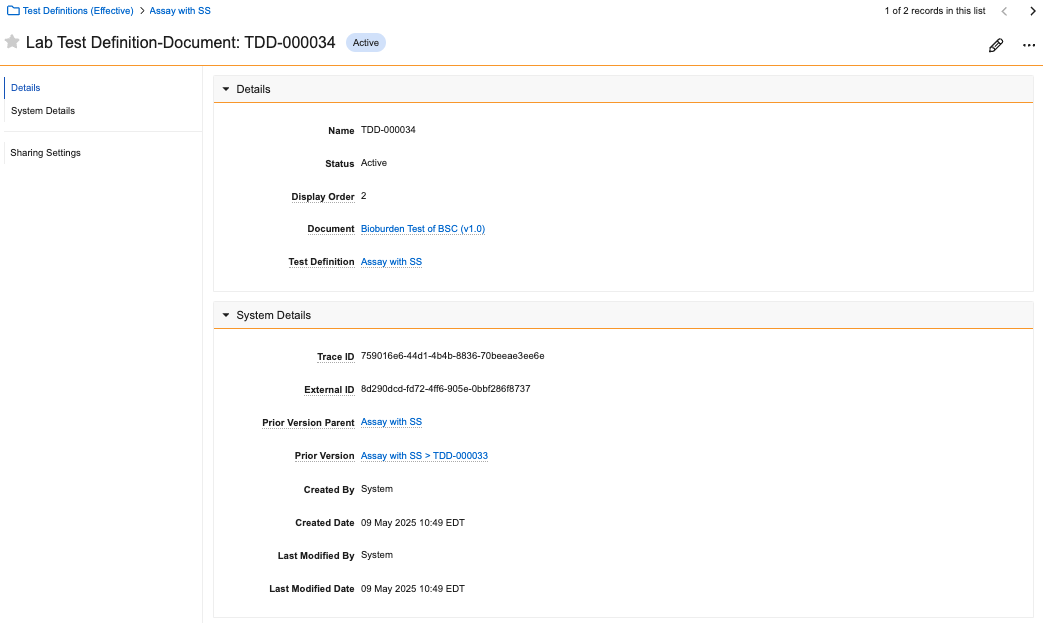
After creating a *Test Definition Document*, you can visit its *Object Details* page to make changes or view version history information in the *System Details* section. The system does not allow you to add duplicate documents (the same document and version combination) to the same *Test Definition*.

<a href="https://platform.veevavault.help/assets/images/version-history-25r2.png" data-lightbox="images" data-title="" data-alt="version history">
  <img class="docimage" src="https://platform.veevavault.help/assets/images/version-history-25r2.png" alt="version history" style="max-width: 400px;"  />
</a>

### Add Variations to your Test Definition {#variations}

In some cases, it may be necessary for laboratory tests to include multiple variations for things such as differences in analysis approach, product makeup, or units. In Veeva LIMS, you can add Variations to a *Test Definition* to capture these needs. Creating a *Test Definition Variation* is optional. However, if a *Test Definition* has one or more Variations, runtime tests can only be created from a Variation and not the base *Test Definition.*

To add a variation to your *Test Definition*:

1. Navigate to your *Test Definition* record and set the **Has Variations?** field to **Yes**.
2. In the *Lab Test Definition Variations* section, click **Create**.
3. Enter a **Name**.
4. Optional: Enter a **Description** of the Variation.
5. Click **Save**.

From your newly created *Lab Test Definition Variation* record, you can add *Lab Test Definition Variation Inputs* or *Lab Test Definition Variation Results* as needed based on the *Test Definition Inputs* and *Test Definition Results* that exist in the *Test Definition* record.

To create a *Lab Test Definition Variation Input*:

1. In the **Actions** menu, select **Create Variation Inputs**. This action is only available if the base *Test Definition* has *Inputs*.
2. In the following dialog, select one or more *Test Definition Input* records. The records displayed are the *Test Definition Inputs* in the *Test Definition* for which a corresponding *Test Definition Variation Input* record has not been created.
3. Click **OK**.

The system creates a *Test Definition Variation Input* record for each *Test Definition Input* selected. If any values need to be modified (for example, *Required*, *Expected Amount*, or *Expected Amount Units*), you can make the necessary changes on the applicable *Test Definition Variation Input* record.

To add more *Test Definition Variation Input* records, repeat the steps above as needed.

To create a *Lab Test Definition Variation Result*:

1. From the **Actions** menu, select **Create Variation Results**. This action is only available if the base *Test Definition* has *Results*.
2. In the following dialog, select one or more *Test Definition Result* records. The records displayed are the *Test Definition Results* in the *Test Definition* for which a corresponding *Test Definition Variation Result* record has not been created. *Test Definition Results* with *Aggregate Variables* or *Cross-Test Variables* are excluded from the list.
3. Click **OK**.

The system creates a *Test Definition Variation Result* record for each *Test Definition Result* selected. If any values need to be modified (for example, *Required*, *Precision*, *Precision Type*, or *Unit of Measure*), you can make the necessary changes on the applicable *Test Definition Variation Result* record.

To add more *Test Definition Variation Result* records, repeat the steps above as needed.

<div class="note-border alert-info">
  <div class="alert alert-info" role="alert">
    <div><i class="far fa-info-circle"></i></div>
    <div class="alert-text">
      <p><strong>Note</strong>: For calculations, all variables must be defined at the <em>Test Definition Result</em> level. However, the calculation formula for a calculated <em>Test Definition Variation Result</em> does not need to utilize all variables defined on the <em>Test Definition Result</em>.</p>
    </div>
  </div>
</div>


<div class="note-border alert-info">
  <div class="alert alert-info" role="alert">
    <div><i class="far fa-info-circle"></i></div>
    <div class="alert-text">
      <p><strong>Note</strong>: When a <em>Test Variation</em> includes only Aggregate Results, its generated tests are set to the <em>Testing Complete</em> state when they are created.</p>
    </div>
  </div>
</div>


## About Lab Result Picklists {#picklists}

Unlike standard Vault picklists, *Lab Result Picklists* are object records, populated with related *Lab Result Picklist Option* records.This allows you to define what picklist options are available to the user for this specific result when they're executing a *Lab Test*.

[1]: #picklists
[2]: #lod-loq
