Process Monitor is a powerful analytics tool to enable business process owners and leadership to streamline processes and improve key metrics. By providing visual insights into your processes, Process Monitor helps you identify bottlenecks and optimize process flows to increase efficiency. Process Monitor works with minimal configuration to provide a full suite of metrics, charts, and graphical analysis tools for any active object or document lifecycle.
Built-in metrics and charts for KPIs related to cycle time, volume, and quality enable you to measure the direct impact of process changes, ensuring continuous improvement.
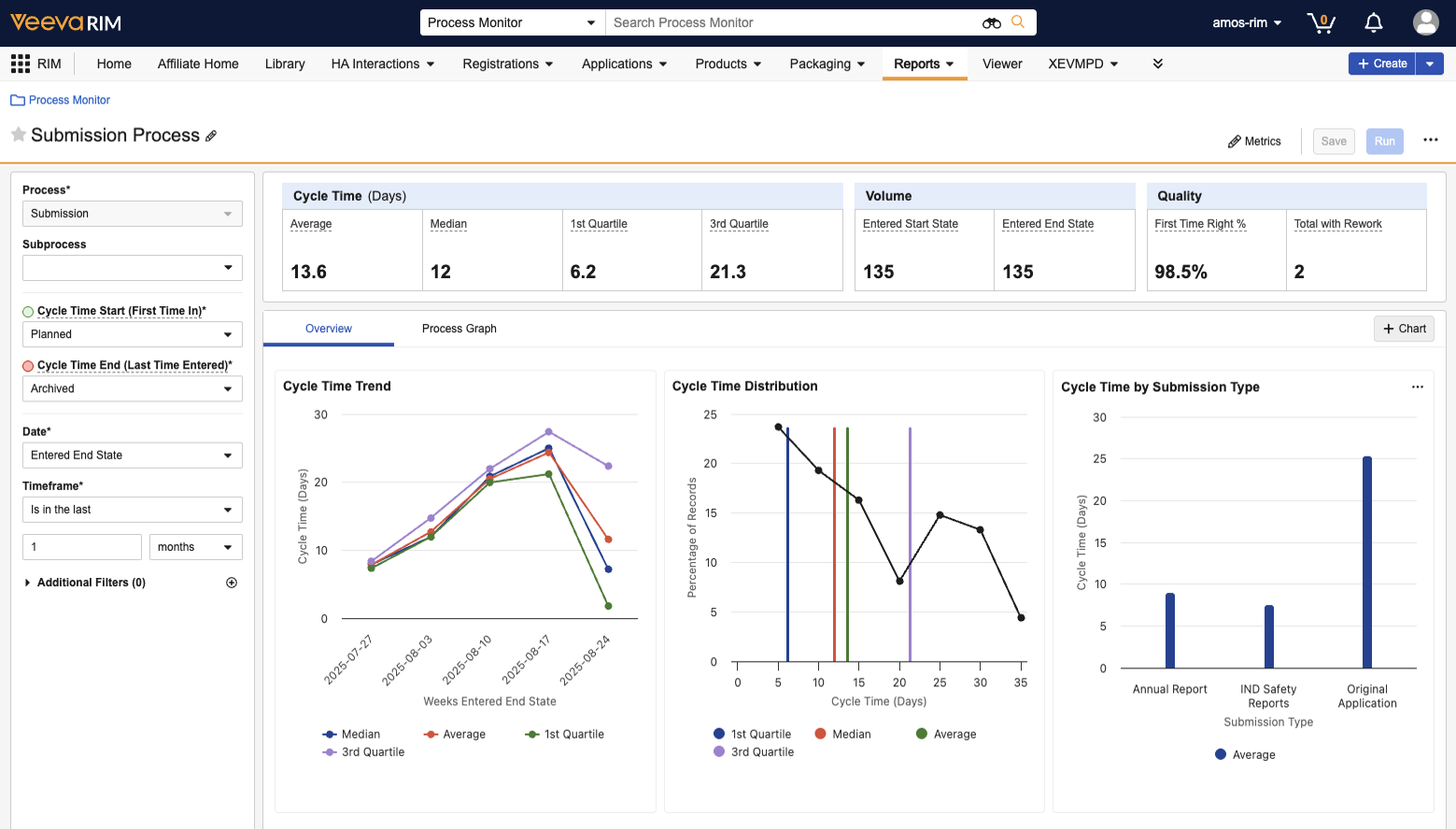
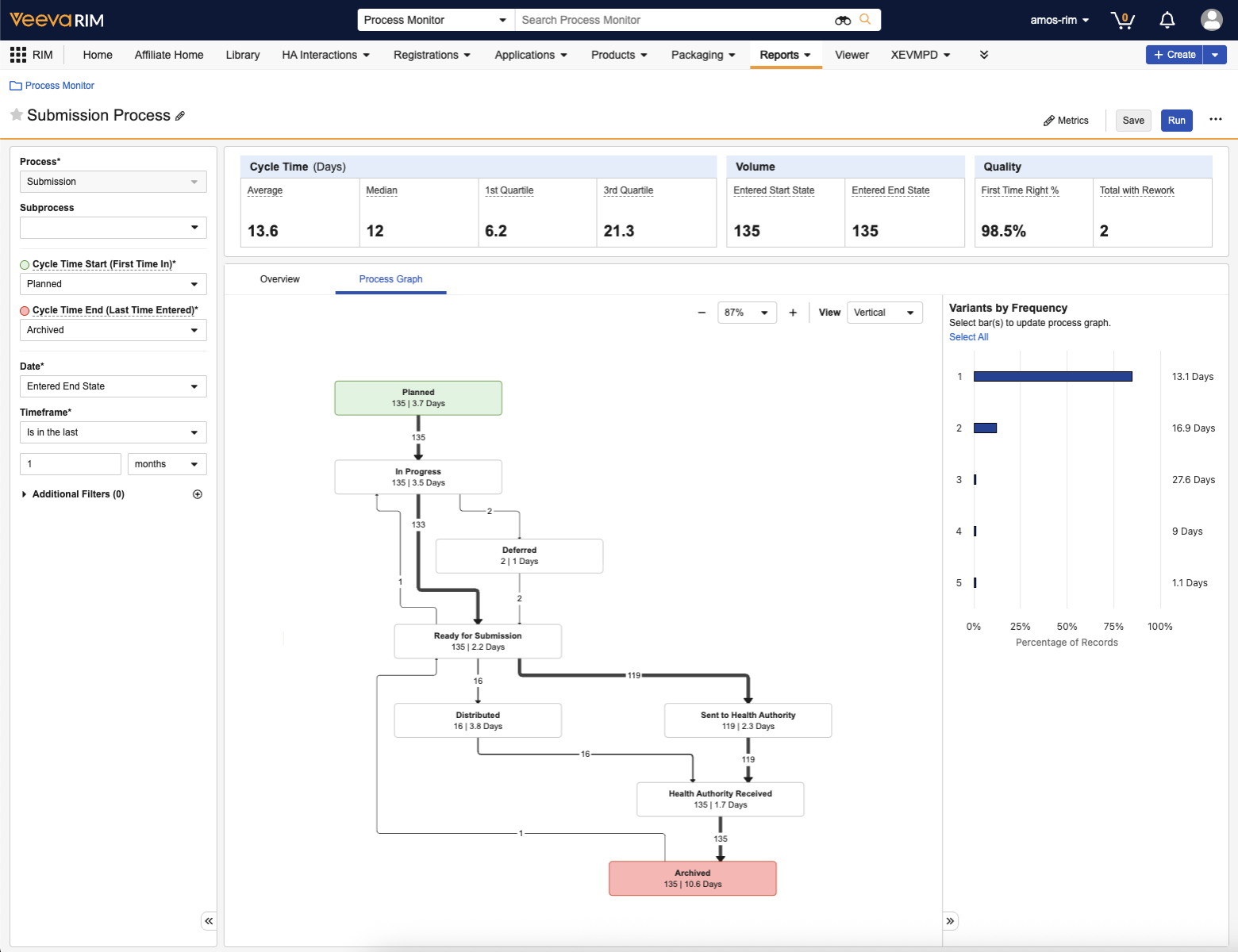
The process graph allows you to trace workflows and identify inefficiencies through a visualization of the steps (lifecycle states) and paths (state-to-state transitions) that records or documents have taken. You can filter this graph using the Variants by Frequency panel, which isolates the unique paths records and documents have traveled, allowing users to focus improvement efforts on the most common or problematic workflows.
Accessing Process Monitor
In most Vaults, Process Monitor is added automatically to your existing tab configuration. Depending on your Vault’s tab configuration, you can access Process Monitor by navigating to Reporting > Process Monitor, or by clicking Process Monitor directly on the navigation bar. If you need to modify access, you can add the Process Monitor tab to existing tab collections.
You must have the necessary permissions to view Process Monitor. In addition, Process Monitor is available in all application families except Clinical Data, CRM, and Align.
Object & Document Processes
Process Monitor allows you to view various metrics about your organization’s processes. These processes include both object lifecycles and document lifecycles.
Object Lifecycles
You can select an object lifecycle in a Process View from the Process drop-down, and then optionally select one or more object types that use that lifecycle from the Subprocess drop-down. When running the Process View, the view displays metrics for object records matching the selected object lifecycle and object types, filtered according to the selected process options, filters, and settings.
Document Lifecycles
You can select a document lifecycle in a Process View from the Process drop-down, and then optionally select one or more document types, subtypes, and classifications that use that lifecycle from the Subprocess dropdown. Process Monitor calculates document process metrics for each steady state version. It groups together all preceding versions after the last steady state version. For example, a process for steady state version 2.0 can include the minor versions 1.1, 1.2, and 1.3.
When running the Process View for a document lifecycle, the view displays metrics for each steady state version matching the selected document lifecycle and document types, filtered according to the selected process options, filters, and settings. The filters are applied to the latest document version in each steady state version.
If a document has been reclassified to a document type that uses a document lifecycle different from the lifecycle selected in the Process View, Process Monitor ignores state change activity for the different lifecycle when calculating metrics or displaying state change information throughout the Process View.
Creating Process Views
Process Views are individual views for a specific process that show the time it takes for a record or document to move from the start of the process to the end. You can create Process Views, copy them, add them as favorites, and share them with other Vault users the same way as with Vault reports.
How to Create Process Views
To create a Process View:
- Navigate to Process Monitor and click Create. Vault displays a blank Process View.
- Click Edit () next to the Process View name, enter a Name and Description for the Process View, and click Save.
- In the process panel on the left, select an active object or document lifecycle from the Process drop-down. Vault populates the Cycle Time Start, Cycle Time End, Date, and Timeframe fields with default values for the selected process.
- Optional: Select an object type or document type, subtype, or classification that uses the selected process from the Subprocess drop-down. You can select up to six subprocesses (up to 255 characters).
- Select a different Cycle Time Start if you want to view data for a cycle time start different from the selected default.
- Select a different Cycle Time End if you want to view data for a cycle time end different from the selected default.
- Select a different Date if you want to view data for a date different from the selected default.
- Select a different Timeframe if you want to view data for a timeframe different from the selected default.
- Optional: Click the plus () icon to add Additional Filters:
- In the Filters dialog, select the filter and filter conditions.
- Click the plus () and minus () icons to add or remove additional filters as needed.
- Click Save to save and apply the selected filters.
- Optional: Select Settings from the All Actions menu to configure additional settings for the Process View and click Confirm to save the settings.
- Optional: Click Metrics to modify which metrics are displayed on the tables at the top of the Process View.
- Optional: Click + Chart to add another chart to the Process View:
- In the Add New Chart dialog, enter a Name for the chart.
- Select a Group By value for how you want the data to be grouped on the chart.
- Select a Sort By value for how you want the data to be sorted on the chart.
- Click Add Chart.
- To edit or delete the chart, select Edit or Delete from the chart’s Actions menu.
- Click Save to save and run the Process View. Vault updates the Process View to display charts and tables based on the selected process, variants, settings, and metrics.
Process Panel
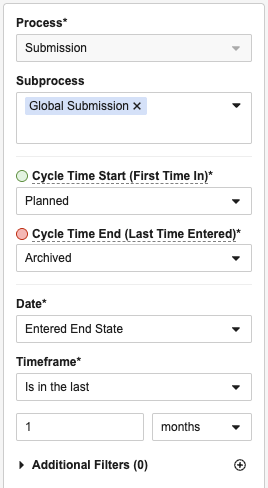
The process panel on the left of the Process View allows you to view different processes, cycle time starts and ends, dates, and timeframes. The following fields are available:
- Process: An active object or document lifecycle.
- Subprocess: An object type that uses the selected object lifecycle, or a document type, subtype, or classification that uses the selected document lifecycle.
- Cycle Time Start: The lifecycle state of the start of the process. By default, the Cycle Time Start uses the first time a record or document entered the selected lifecycle state, but you can change this in the Process Monitor Settings dialog.
- Cycle Time End: The lifecycle state of the end of the process. By default, the Cycle Time End uses the most recent time a record or document entered the selected lifecycle state, but you can change this in the Process Monitor Settings dialog.
- Date: Date fields on the selected process and subprocess, as well as dates specific to processes, such as Entered Start State or Entered End State.
- Timeframe: The timeframe for which you want to view records or documents that went through the selected Process based on the selected Date.
- Additional Filters: Additional standard object field or document field filters that differ depending on the selected Process and Subprocess.
Process View Settings
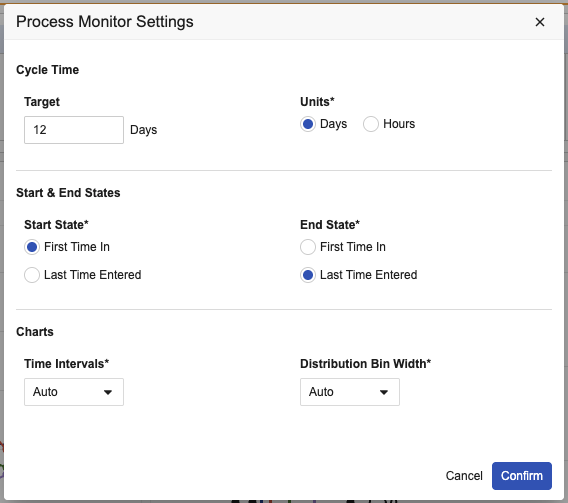
Select Settings from the All Actions menu on a Process View to configure the settings below. Vault saves these settings at the Process View level and not the user level.
- Target: The manually defined cycle time goal of time for records or documents to spend within the process between the start to end states using the selected Units value (Days or Hours).
- Units: The units (Days or Hours) used to calculate and display the cycle time values.
- Start State: Whether the Cycle Time Start is calculated using the first time (First Time In) or most recent time (Last Time Entered) that a record or document entered the lifecycle start state.
- End State: Whether the Cycle Time End is calculated using the first time (First Time In) or most recent time (Last Time Entered) that a record or document entered the lifecycle end state.
- Time Intervals: The time intervals used to display data points on the Cycle Time Trend chart.
- Distribution Bin Width: The time range used to display data points on the Cycle Time Distribution chart.
Process View Metrics
The Process View metrics tables display various metrics about the selected process as a whole. You can add up to ten metrics to a Process View.
For document metrics, Process Monitor performs the calculations for each steady state version.

Cycle Time
The Cycle Time table displays metrics the time that records or documents spend between the Cycle Time Start state and Cycle Time End state. Only records or documents that entered the end state are included in these calculations.
- 1st Quartile: The 25th percentile of time records or documents spent between the start and end states.
- 3rd Quartile: The 75th percentile of time records or documents spent between the start and end states.
- Average: The average time records or documents spent between the start and end states.
- Median: The median time records or documents spent between the start and end states.
- Target: The target cycle time goal for records or documents to spend within the process between the start to end states.
Volume
- Created: The total number of unique records or documents created during the selected Timeframe. For documents, Process Monitor uses the creation date of the first version in each steady state version.
- Entered Start State: The total number of unique records or documents that entered the Cycle Time Start state in the selected Timeframe.
- Entered Start State / Day: The average number of unique records or documents that entered the Cycle Time Start state per day in the selected Timeframe.
- Entered Start State / Week: The average number of unique records or documents that entered the Cycle Time Start state per week in the selected Timeframe.
- Entered Start State / Month: The average number of unique records or documents that entered the Cycle Time Start state per month in the selected Timeframe.
- Entered End State: The total number of unique records or documents that entered the Cycle Time End state in the selected Timeframe.
- Entered End State / Day: The average number of unique records or documents that entered the Cycle Time End state per day in the selected Timeframe.
- Entered End State / Week: The average number of unique records or documents that entered the Cycle Time End state per week in the selected Timeframe.
- Entered End State / Month: The average number of unique records or documents that entered the Cycle Time End state per month in the selected Timeframe.
Quality
- Completed Late: The number of records or documents where the time between the start and end states is greater than the specified Target.
- Completed Late %: The percentage of records or documents where the time between the start and end states is greater than the specified Target.
- Completed on Time: The number of records or documents where the time between the start and end states is less than the specified Target.
- Completed on Time %: The percentage of records or documents where the time between the start and end states is less than the specified Target.
- First Time Right %: The percentage of records or documents that did not repeat any lifecycle states.
- Number of Variants: The total number of unique process paths.
- Total First Time Right: The total number of records or documents that did not repeat any lifecycle states.
- Total with Rework: The total number of records or documents that repeated one or more lifecycle states.
How to Edit Process View Metrics
To edit which metrics are displayed:
- Click Metrics.
- In the Edit Metrics dialog, select the metrics you want to add or remove from the tables and click the move left () and move right () arrows to move them between the Available Metrics and Selected Metrics lists.
- To reorder the metrics, select the metrics you want to move on the Selected Metrics list and click the move up (), move down (), move to top (), and move to bottom () arrows to move them to the position you want.
- Click Save to save the selected metrics, and click Run to update the data on the metrics tables.
Process View Target
You can specify a Target for a Process View, which is a cycle time goal for records or documents to spend between the start and end states of the selected process. Vault uses the specified Target value to calculate the metrics for Completed Late (count and percentage) and Completed on Time (count and percentage). You must configure a Target value for Vault to calculate these metrics.
For example, if you want to target 10 days for records to progress through the process from start to finish, enter 10 for the Target, and select Days for the Unit. Out of 20 total records in the specified Timeframe, 17 entered the end state within 10 days, and 3 entered the end state after 10 days. Vault calculates the metrics as follows:
- Completed on Time: 17
- Completed on Time %: 85%
- Completed Late: 3
- Completed Late %: 15%
Viewing Process Views
Navigate to Process Monitor to view a list of Process Views to which you have access.
Process Views & Favorites
The Process Monitor tab displays several views:
- All Process Views: Lists all Process Views in the Vault for which you are an Owner, Viewer, or Editor. All other views are subsets of this view.
- Recent Process Views: Lists the last 20 Process Views that you viewed, edited, or created.
- Favorites: Lists Process Views that you have marked as a favorite by clicking the Favorite () icon.
When viewing All Process Views, you can also use search and filters and edit the column layout to create additional custom views. Click Save View As to save this view to your Views panel.
How to View a Process View
To view a Process View:
- In Process Monitor, click the Name of the Process View you want to view. Vault runs the selected Process View and displays the cycle time charts in the Overview tab.
- Optional: Modify the Subprocess, Cycle Time Start, Cycle Time End, Date, and Timeframe in the process panel as needed and click Run to update the Process View.
- Optional: Select Settings from the All Actions menu to configure additional settings for the Process View, click Confirm to save the settings, and click Run to update the Process View.
- Optional: Click Metrics to modify which metrics are displayed on the tables at the top of the Process View, and click Run to update the Process View.
- Click the Overview tab to view cycle time trend and distribution charts for the selected process. Hover over a data point on the chart to view additional information chart data.
- Click the Process Graph tab to view a flowchart of the lifecycle states in the selected process. Hover over a lifecycle state the view additional information about how long records or documents were in that state.
Process Monitor Performance
Process Monitor performs advanced computations on your data. These computations take longer based on the number of records or documents that qualify for the Process View configuration, as well as the complexity of the process you are analyzing. Depending on how many steps and variants are in your process, a single Process Monitor run can typically analyze between 500 and 4,500 records or documents per second. A Process Monitor run will time out after 30 minutes.
The first time anyone in your Vault runs a saved Process View for a given process, it will take longer to run. Subsequent runs will be faster because Vault reuses some computations.
If your Process Monitor run is taking too long, shorten the Timeframe selection or apply additional filters to reduce the number of records or documents being analyzed.
Overview Tab
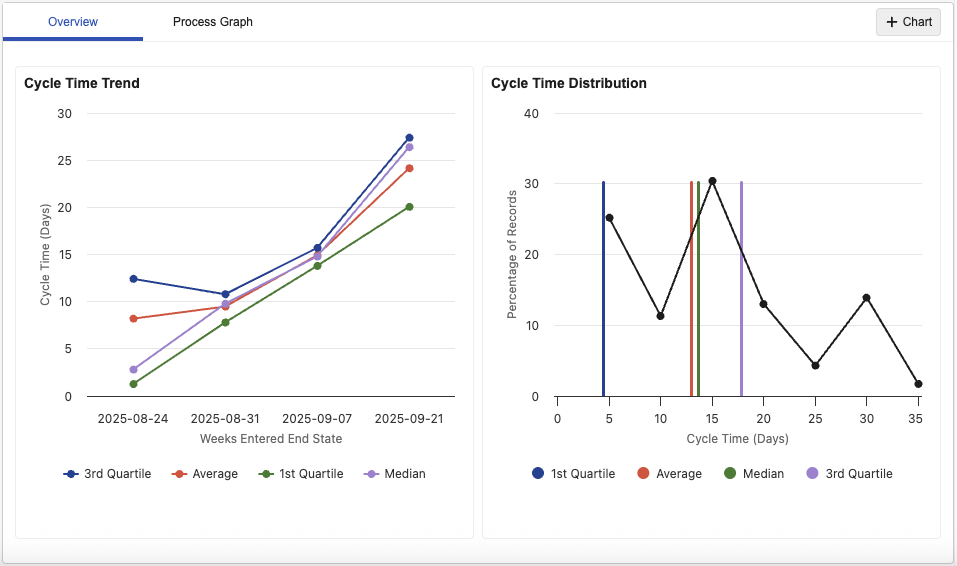
The Overview tab displays the Cycle Time Trend chart, the Cycle Time Distribution chart, and any other custom charts added to the Process View.
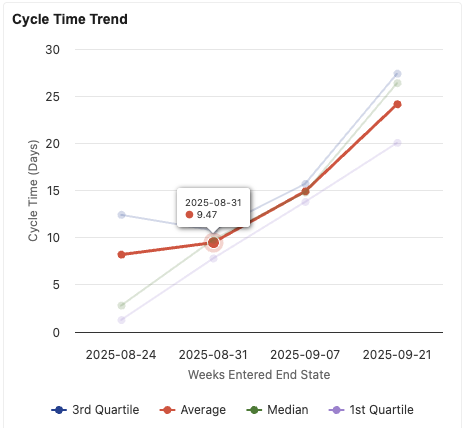
Cycle Time Trend Chart
The Cycle Time Trend chart displays trending lines for each of the cycle time metrics (average, median, and so on) with data points for the number of days it took for records or documents to reach the end state for each time interval. To modify the time interval displayed on the Cycle Time Trend chart, select a different Time Intervals value in the Process Monitor Settings dialog.
In the example below, Time Intervals is set to Weeks. Records took an average of 8.2 days to reach the end state the week of August 8, 2025, 9.47 days to reach the end state the week of August 31, 2025, 14.91 days to reach the end state the week of September 7, 2025, and so on.
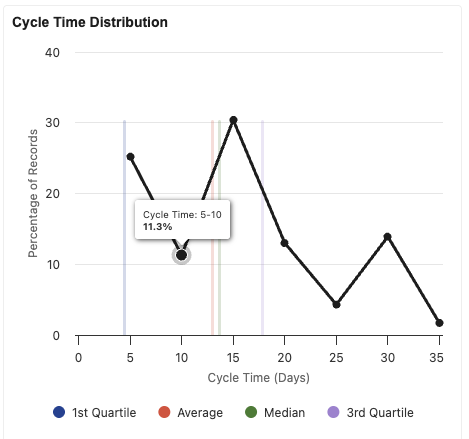
Cycle Time Distribution Chart
The Cycle Time Distribution chart displays a line with the percentage of records or documents that reached the end state within a range of days (or other time unit). The chart also displays vertical lines for each of the cycle time metrics for comparison. To modify the time unit displayed on the Cycle Time Distribution chart, select a different Distribution Bin Width value in the Process Monitor Settings dialog.
In the example below, the Distribution Bin Width is set to 5, so each data point includes records that reached the end state within five-day periods. 25.2% of records reached the end state within 0-5 days, 11.3% of records reached the end state within 5-10 days, 30.4% of the records reached the end state within 10-15 days, and so on.
Process Graph Tab
The Process Graph tab displays a flowchart of the lifecycle states in the selected process.
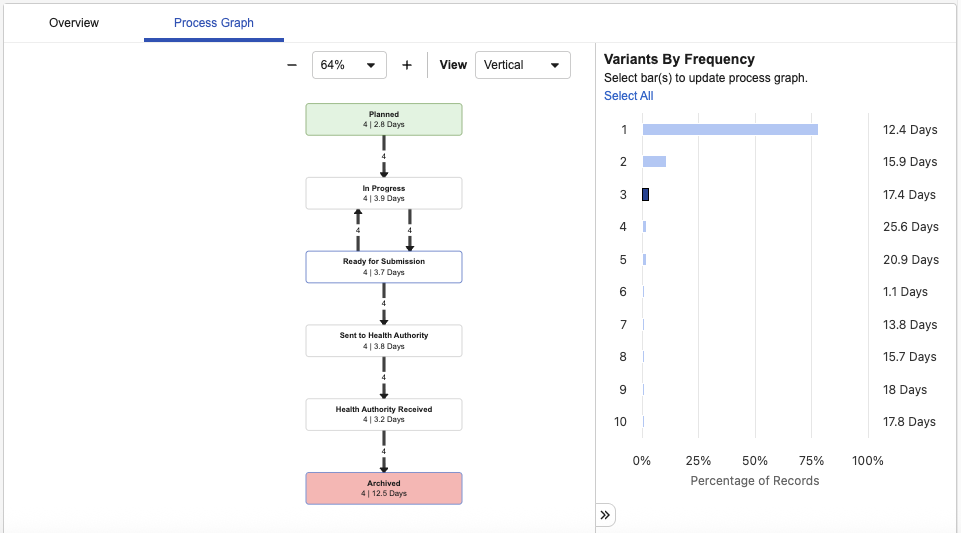
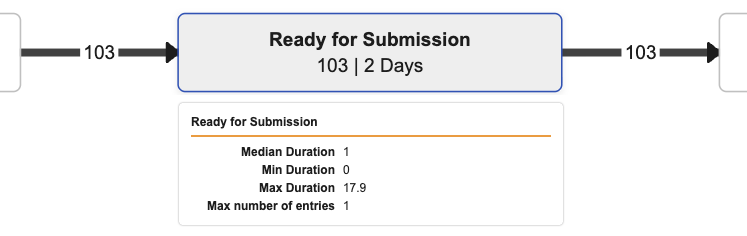
Each lifecycle state on the flowchart displays the name of the lifecycle state, the number of records or documents that transitioned through the state, and the average time all records or documents spent in that state. Arrows are displayed to the left and right of the lifecycle state that indicate the number of records or documents that entered the state and exited the state. Hover over a lifecycle state to view information about how long the records or documents were in that state, including the median duration, minimum duration, maximum duration, and maximum number of times a record or document entered that state.
If a document has been reclassified to a document type that uses a document lifecycle different from the lifecycle selected in the Process View, Process Monitor ignores state change activity for the different lifecycle when displaying state change information in the Process Graph tab.
Variants By Frequency Panel
The Variants By Frequency panel on the right of the Process Graph tab displays a bar for each variant of the selected process. A single lifecycle may have several paths (variants) for a record or document to progress through the lifecycle. For example, one record may start in the Planned state and transition directly to the Approved state, while another record may start in Planned, transition to In Review, and then transition to Approved. Each variant of the lifecycle is displayed as its own bar on the Variants By Frequency panel. The average time a record or document takes to transition from the Cycle Time Start state to the Cycle Time End state is displayed to the right of each variant bar.
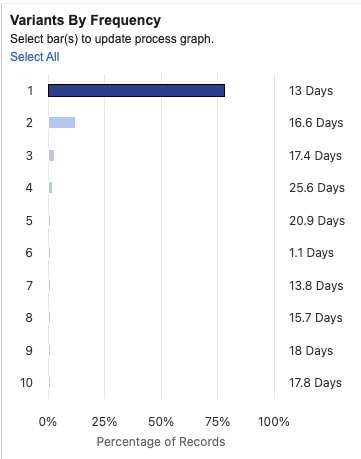
To view the flowchart for a specific lifecycle variant, click its variant bar on the Variants By Frequency panel. To view the entire flowchart for all lifecycle variants, click Select All. Click the plus (+) icon and minus (-) icon to zoom in and out on the lifecycle flowchart. Select Horizontal or Vertical from the View drop-down to view the lifecycle flowchart in a horizontal or vertical layout.
Exporting Process View Records or Documents
You can export a list of records or documents in a Process View to a .TXT or .CSV file. You can export all records or documents in the Process View, or export the records or documents for a specific lifecycle state or state transition. Whether Process Monitor exports to .TXT or .CSV depends on whether your Vault is configured for multilingual document handling.
How to Export All Process View Records or Documents
To export all records or documents in a Process View:
- In the Process View, select Text/CSV from the All Actions menu.
- In the Select Columns to Export dialog, click Export to export the records or documents using the columns in the default list view configuration, or modify the columns you want to export and rerun the view by clicking Run + Export. Vault generates a .TXT or .CSV file with a list of all records or documents in the Process View.
- Optional: If you modified the columns and clicked Run + Export, you can click Save in the Process View to save your changes to the selected columns.
How to Export Records or Documents in a Specific Lifecycle State
To export records or documents in a specific lifecycle state:
- In the Process Graph tab, select one or more variants on the Variants by frequency panel.
- Hover over a lifecycle state or state transition arrow on the process graph to display a hovercard with information about the state or transition.
- Click Export on the hovercard. Vault generates a .TXT or .CSV file with a list of the records or documents in the lifecycle state or state transition using the current list view columns. You cannot modify which columns you want to export when exporting records from a hovercard.
Related Permissions
The ability to view a Process View is determined by object-level, field-level, and record-level permissions, document permissions, and Atomic Security. If a user has access to view a record or steady state version, the Process Graph shows all state changes for the record or steady state version, regardless of Atomic Security settings.
Users with the Vault Owner, System Administrator, or Business Administrator security profiles are automatically granted permissions to read and edit all Process Views through the Process Monitor Administrators system-provided group.
The following permissions control your ability to use Process Monitor:
| Type | Permission Label | Controls |
|---|---|---|
| Security Profile | Tabs: Process Monitor: View | Ability to view the Process Monitor tab. Must be enabled in conjunction with the Pages: Process Monitor: View preference. |
| Security Profile | Pages: Process Monitor: View | Ability to view the Process Monitor tab. Must be enabled in conjunction with the Tabs: Process Monitor: View preference. |
| Security Profile | Objects: Process View: Read | Ability to view Process Views within Process Monitor. |
| Security Profile | Objects: Process View: Create, Edit, Delete | Ability to create, edit, and delete Process Views. |
| Security Profile | Objects: [Object]: Read | Ability to select processes for the specified object when creating a Process View, and ability to view a Process View for the specified process. |
| Document Role | View Document | Ability to select processes and subprocesses for a document lifecycle and document type, and ability to view a Process View for the specified process and subprocess. Users must have View Document permissions for at least one steady state version that uses the related lifecycle and document type to allow them to select the process and subprocess, and to view the Process View for the process and subprocess. Steady state versions the user does not have access to are not displayed in the Process View. |