The Stability Study Builder feature allows Design Data Admins to create and manage Lab Studies and Lab Study Design records using a UI that makes the process faster and less error-prone. In order to use this feature, it must be configured by a Vault Admin.
About the Stability Study Builder UI
The Stability Study Builder UI includes two different views: Create and Edit. The Create view is what you see when creating a new Lab Study or Lab Study Design record while the Edit view is where you make any subsequent changes.
Create View
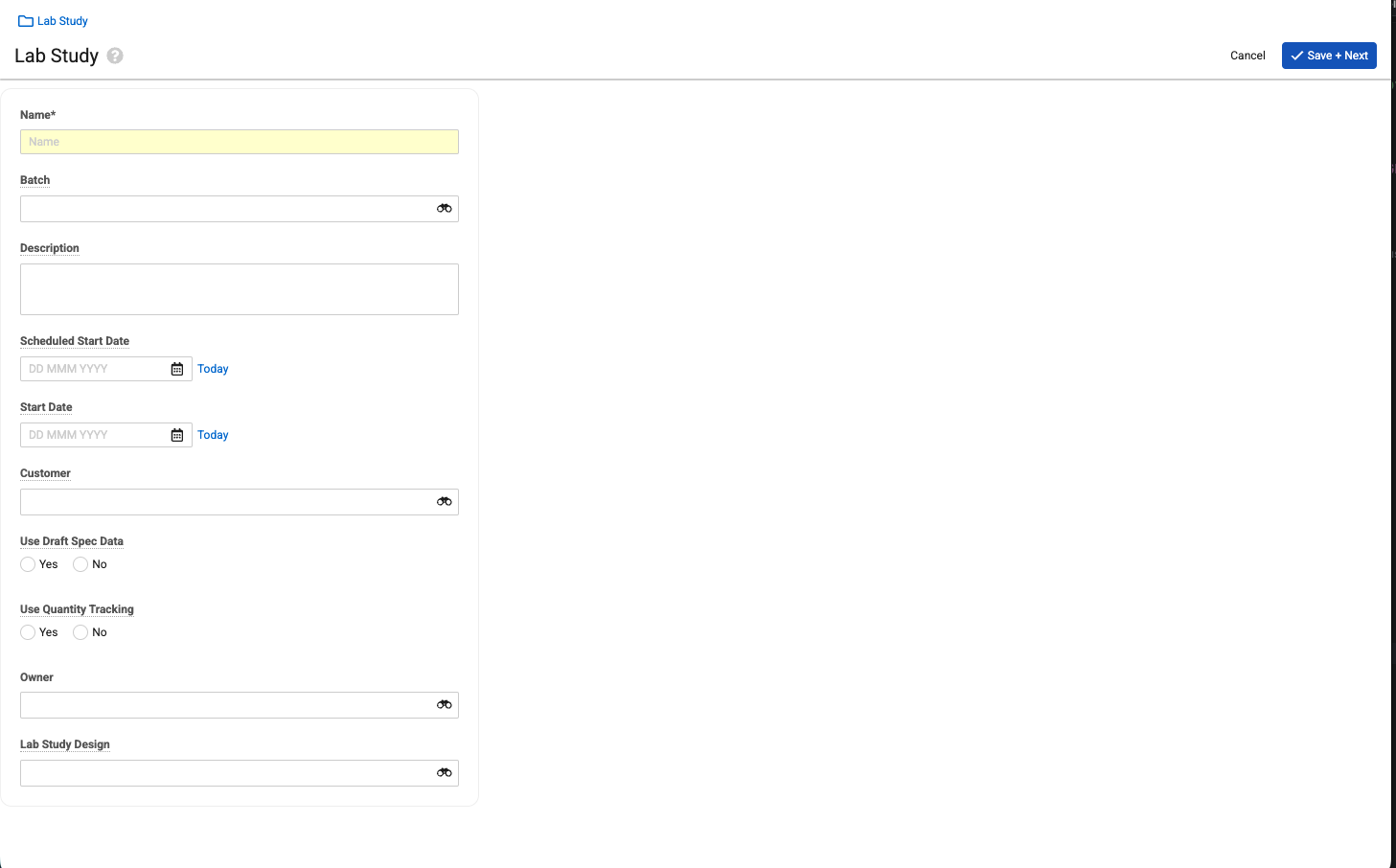
Lab Study:
- Name
- Batch
- Description
- Scheduled Start Date
- Start Date
- Customer
- Use Draft Spec Data
- Use Quantity Tracking
- Owner
- Study Design Template
- Owning Site
Lab Study Design:
- Name
- Description
- Use Draft Spec Data
- Use Quantity Tracking
- Is Template
Edit View
The Edit view is split into a header, left panel, and right panel. The header lists the record’s Name and other metadata. The left panel shows a summary of the configurable items, and the right panel is where you navigate through and make changes to those items.
Header
The header includes the following metadata:
- Name: The record’s name.
- Lifecycle State: A badge showing the current lifecycle state of the record.
- Owning Site: The site with which the record is associated, if applicable.
- Description: A brief description of the Study or Study Design.
- Batch: The Batch associated with the record, if applicable.
Left Panel
You can collapse or expand the left panel as desired. It lists the steps to set up a Lab Study or Lab Study Design record. Click into each step to interact with it in the right panel. The following steps are available in this panel:
- Select Documents
- Create Timepoints
- Add Conditions
- Specify Testing
- Define Reduced Testing (If configured)
Right Panel
The right panel is the main work area for configuring your Stability Study. Its contents depend on which step you have selected in the left panel. In addition to the work area, this panel includes the Next and Back buttons for navigating between sections and the Not Applicable checkbox. This checkbox is not available for some required subsections. Checking this box deletes any configuration records in the current subsection and marks it as complete. If you configure something in the subsection later, the Not Applicable checkbox is automatically cleared.
Working With the Stability Study Builder
For information on using the Stability Study Builder, see Creating Lab Study Designs with the Stability Study Builder and Creating Lab Studies with the Stability Study Builder.
Required Permissions
In order to view the Stability Study Builder UI, users must have READ permissions to the following objects:
- Lab Study Design
- Lab Study Design Timepoint
- Lab Storage Condition
- Sample Definition
- Sample Plan
- Spec Data
- Spec Data Sample Action
- Test Definition
- Unit of Measure
- Lab Study
- Lab Study Timepoint
- Spec Execution
- Spec Execution Sample Action
- Criteria Evaluation
- Inventory Summary
Additionally, the following permissions are required to complete their respective actions:
| Action | Required Permission |
|---|---|
| Select Document | EDIT on Stability Study-Document |
| Unselect/Delete Document | DELETE on Stability Study-Document |
| Create Timepoint | CREATE on Study Design, Study Timepoint, Stability Spec Data, Sample Plan |
| Edit Timepoint Config | EXECUTE on Edit Timepoint Configuration record action and active |
| Copy Timepoint | EXECUTE on Copy Timepoint Configuration record action and active |
| Clear Timepoint Config | EXECUTE on Clear Timepoint Configuration record action and active |
| Delete Timepoint | DELETE on Study Design and Study Timepoint |
| Create Condition | CREATE on Sample Definition |
| Delete Condition | DELETE on Sample Definition |
| Edit Backup Quantities | EDIT on Inventory Summary |
| View Spec Data Mini Browser | VIEW permission on Spec Data Builder app page |