Reduced Testing allows QC Managers to apply a reduced set of tests and criteria or skip testing entirely on batches of material from a supplier to allow for quick rejection or approval.
If configured by an Admin, you can define Testing Plans on Spec Data via the Spec Data Builder. When doing so, you must, at minimum, define a Reduced Test Plan. Spec Data is implicitly a Full Test Plan unless otherwise specified. Therefore, you cannot explicitly define a Spec Data record as a Full Test Plan.
Change Analysis checks will ensure that your test plans are valid. For example, the Test Plan does not include a test that is dependent on another test, such as those using cross-test variables.
Defining Test Plans
To define a Test Plan for a given Spec Data:
- Navigate to the Spec Data in the Spec Data Builder and select Define Reduced Testing in the left panel.
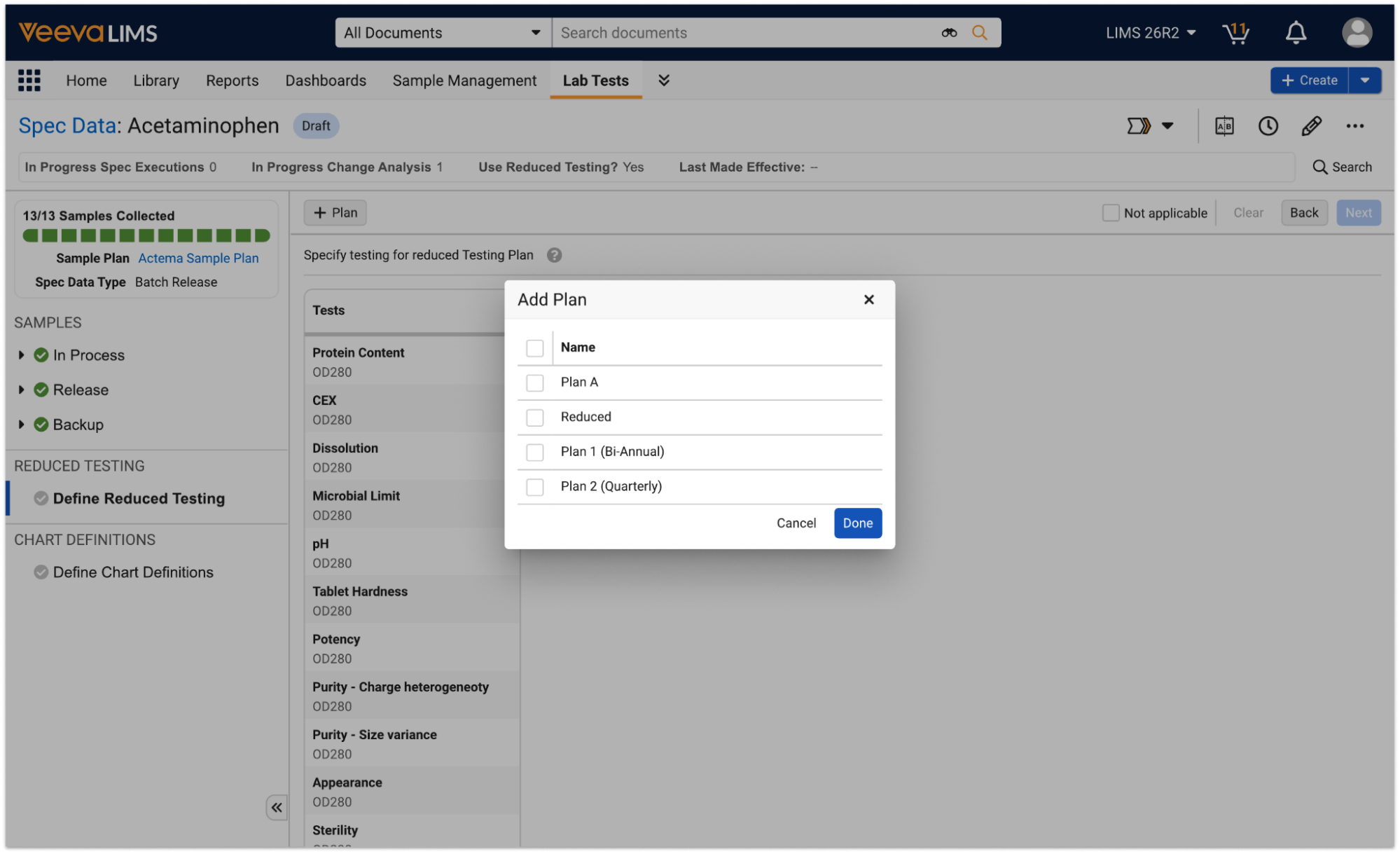
- Select + Plan.
- The resulting Add Plan dialog contains a list of all active, non-Full Test Plan picklist values that have not already been added to the current Spec Data. Select one or more of them.
- Click Done. The selected plans now appear as columns in the right panel Testing Plan grid.
- Check the boxes on the test action rows of the Testing Plan grid to include them in your selected plans.
You can click Clear to remove all assigned tests from all plans in the grid or use the Not Applicable checkbox to remove all plans from the Spec Data, indicating that it does not participate in a reduced testing program.
Setting up a Qualification’s Test Plan Schedule
You can configure the testing schedule for a specific Material and Supplier combination in the Qualification record. These records may come from Veeva Quality via the Quality-LIMS Connection.
In order to create a Test Plan Schedule, complete the following steps:
- Create a Qualification record.
- Enter a Name.
- Select the applicable Material.
- Select the Supplier’s Organization.
- Set Apply Reduced Testing to Yes.
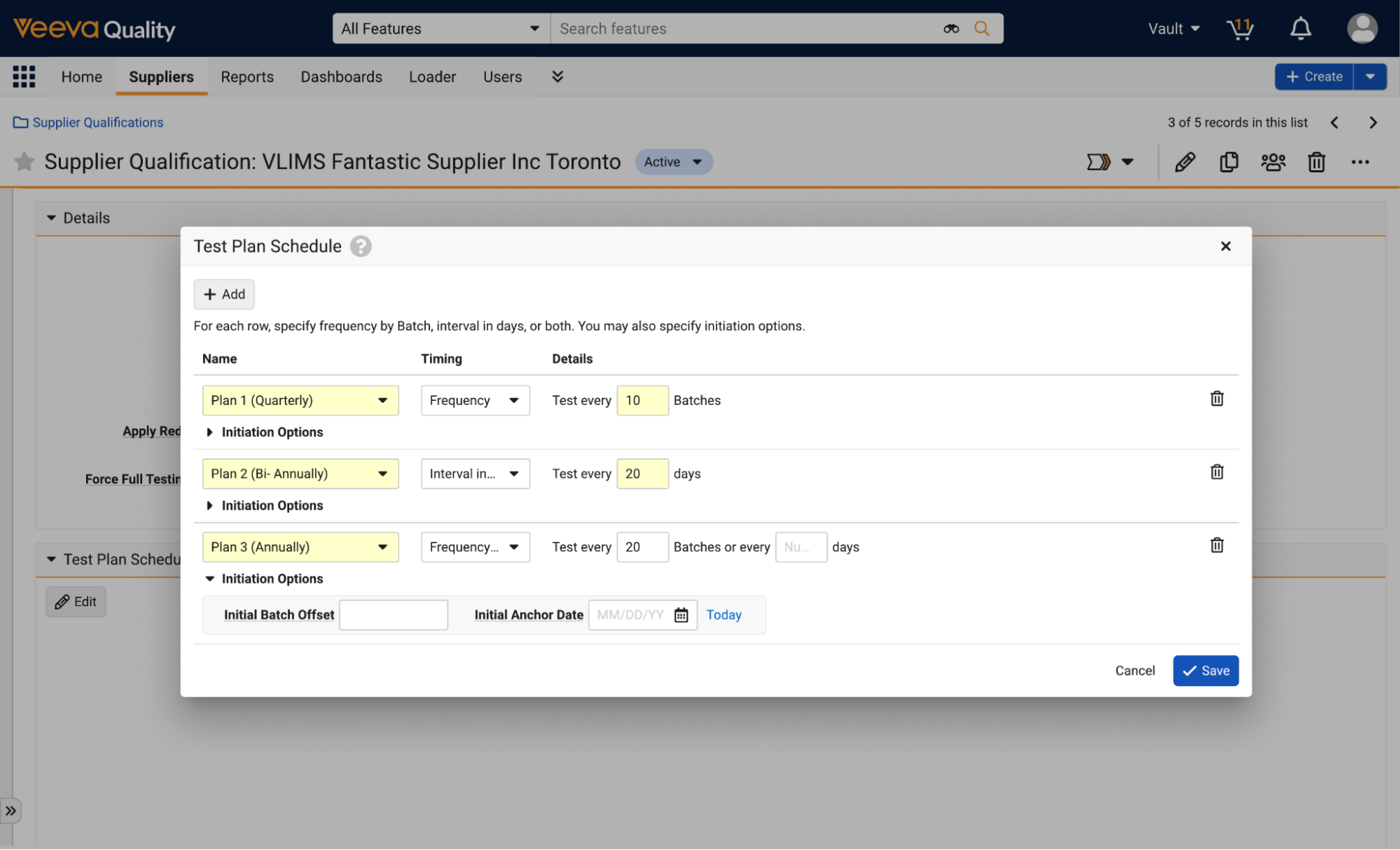
- In the Test Plan Schedule section of the Qualification record details page, click Edit to open the Test Plan Schedule dialog.
- Click + Add to create a new row for the Testing Plan to be scheduled.
- Select the Testing Plan’s Name.
- Select the Timing. This defines how the plan is triggered. You can choose the following options:
- Frequency: Trigger by batch count, for example, every 10 batches.
- Interval in days: Trigger by elapsed time, for example, every 25 days.
- Frequency and interval in days: Trigger by whichever of the timing thresholds happens first.
- Optional: If applicable, enter the number of batches to trigger for Frequency.
- Optional: If applicable, enter the number of days to trigger for Interval in days.
Initiation Options
Each row of the grid has a collapsible Initiation Options section containing the Initial Batch Offset and Initial Anchor Date fields. These fields are used as a one-time historical seed for cases in which you are migrating an in-progress reduced testing program from another system.
The Initial Batch Offset value is for frequency-based schedules and represents the number of batches that have occurred since the last time that specific testing level was run. For example, if a Full Testing Plan has a Frequency of 4 (Sequence: Full > Reduced > Reduced > Reduced > Full), an Initial Batch Offset of 0 indicates that the most recent batch was Full. An offset of 1 indicates there has been 1 batch since the last Full batch (meaning the sequence is currently at the first Reduced). An offset of 3 means 3 batches have passed since the last Full batch, so the system will evaluate the next batch as Full.
The Initial Anchor Date is for interval-based schedules and represents the exact date the level was last run.
Note: There is no validation between Spec Data and Schedule. Any invalid setup (for example, Spec Data cannot be found, multiple Spec Datas found, or the Spec Data Plan selected is not used in the Spec Data) are handled at runtime by falling back to a Full Test Plan.
Scheduled Test Plan Flow
When using the schedule to determine the testing level, the Material of the batch should match the Qualification’s Material field. If the batch has an Organization, it should match the Qualification’s Organization. If no Organization matches are found or the batch has no Organization, the system uses the Qualification with a blank Organization. If multiple or no Qualifications are found, the user receives an error and testing reverts to Full.
When a Qualification is found, the system evaluates each Testing Level referenced in the Spec Data in priority order. For each level, it finds the last valid Spec Execution (batch) tested at that specific level or any higher priority level to determine whether the current batch requires this testing level. If its timing is based on the Interval in days, the system compares the valid Spec Execution initiation dates. If the timing is by Frequency, it evaluates the number of batches initiated since that specific level was last tested compared to its frequency. If the interval or frequency criteria are not met, it moves on to evaluate the next level that is referenced in the Spec Data, and so on, until reaching the Reduced testing level.
When evaluating each testing level in priority order, the system must check if an actual historical batch exists in the system for that specific level. If no historical batch exists in the system, it evaluates the Initial Batch Offset and Initial Anchor Date defined on the Qualification Test Plan Schedule to determine if the interval or frequency criteria are met. If the Initial Anchor Date is set to a future date, the system ignores it during its evaluation, treating the interval criteria as not met for that level. If a historical batch does exist in the system, it ignores the Initial Batch Offset and Initial Anchor Date fields and instead evaluates the interval and frequency strictly against the last batch tested at that specific level.
About the Override to Full Action
When a batch is initiated with a Reduced Testing Plan but requires full testing instead, users with the correct permissions can use the Override to Full action in the Spec Execution record’s actions menu. This action sets the Spec Execution’s Spec Data Test Plan to Full and adds the Tests needed to reach Full Testing but does not create duplicate Test records for tests the user already added manually. The system evaluates the required Tests for Full Testing against the existing Tests on the batch. It does not duplicate Tests that have already been generated (including ad-hoc Tests), regardless of whether they are associated with a standard sample or a newly created ad-hoc sample. This includes any Tests or Samples that were invalidated. For the remaining missing Tests that need to be generated, the system attempts to add them to their designated Samples if they already exist on the batch. However, if the designated sample is no longer viable (Completed Date contains a value or the Sample is Invalid), the system does not modify it. In those cases, or if the sample does not exist at all, the system logs new, separate sample(s) opportunistically.
In general, it is best practice to log more tests than needed because it is easier to identify and cancel extra Tests logged rather than identify and manually log missing Tests. For example, if a resample is performed before an override and additional tests are logged on the original sample, the system would log those Tests on the resample as well. However, the following considerations apply when using the Override to Full action:
- For ad-hoc Tests added, the system does not check that the Criteria of the Test matches with its definition in the Spec Data. It assumes that the Criteria match and therefore, when overriding to Full, the system does not add another Test if it has already been covered by an ad-hoc Test.
- The system does not automatically correct extreme user errors, such as an analyst manually logging an ad-hoc Test on the incorrect Sample. If this occurs prior to an override to Full Testing, the analyst is responsible for manually canceling the incorrectly placed test under a standard investigation/change control process to clean up the batch.
- Replicate testing is an all or nothing approach, meaning that either all of the Replicate Tests are included in reduced testing or none of them are. Therefore, there can be no partial subset of Replicate Tests included in a Test Plan.
- The system does not generate new Samples for existing aliquot actions that have already been updated (for example, Tests have been started). However, it generates new aliquot actions for any aliquot samples needed with their lineage linked to the same parent sample. This is determined based on the difference between the Aliquot Count field on the Spec Execution Sample Action and the defined Spec Data Sample Action.